Resetting Your Password
Overview
Your password isn’t stored in FutureFund Connect itself. It belongs to your FutureFund account, which is the single sign-in you use across all FutureFund products. That means you set and reset it in one place, and it works everywhere.
It also means one important thing to know up front: nobody can set a password for someone else. Not a fellow board member, not your council or district, not FutureFund support. Each person resets their own, using their own email inbox. This is deliberate — it’s what keeps your unit’s financial and member information safe.
Resetting Your Own Password
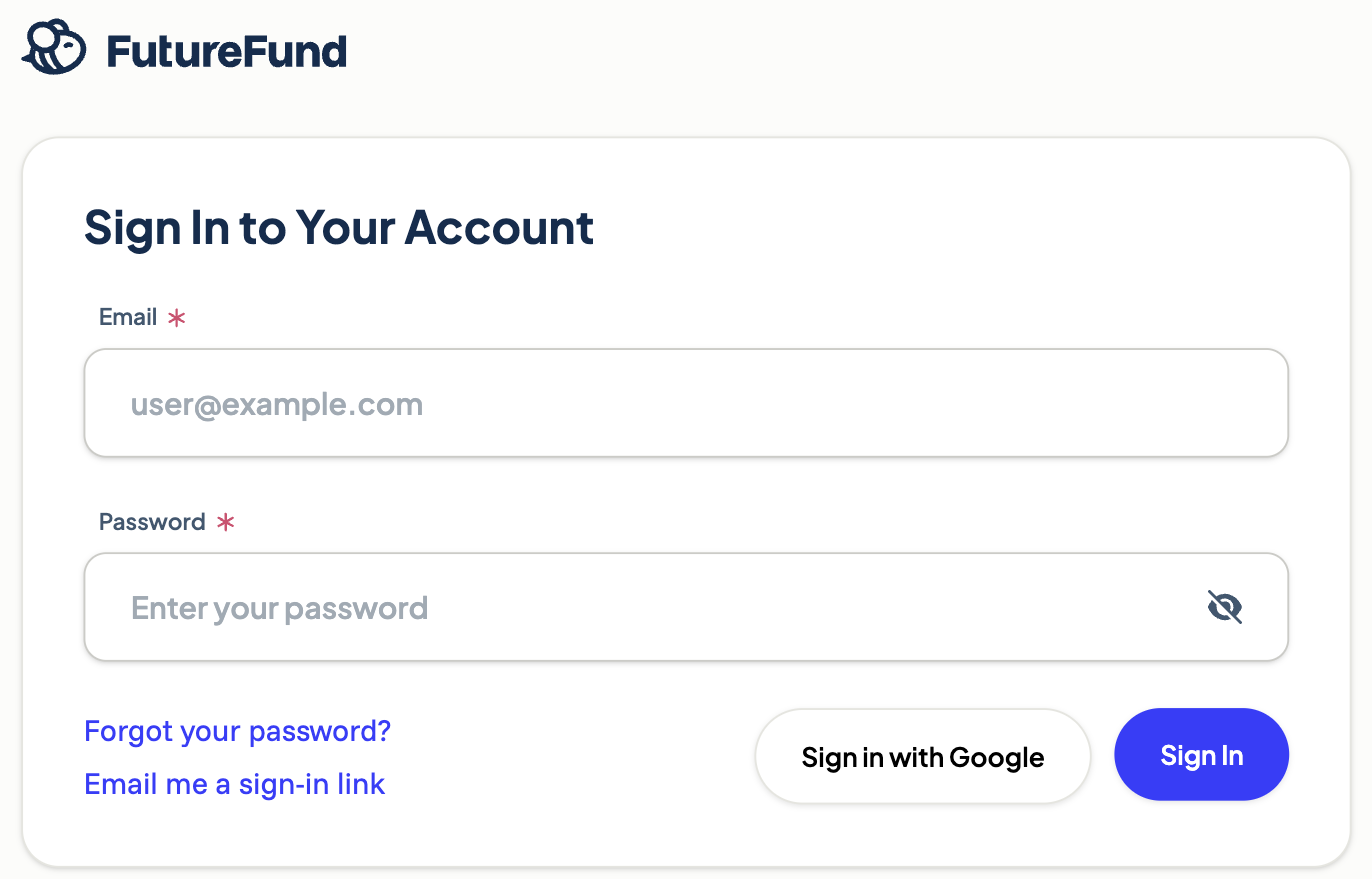
- Go to the FutureFund sign-in screen at accounts.futurefund.com.
- Click Forgot your password?
- Enter the email address you use for FutureFund and submit.
- Check your inbox for the reset email and follow the link to choose a new password.
- Sign back in to FutureFund Connect with your new password.
Can’t wait for the email?
The sign-in screen also offers Email me a sign-in link. This sends you a one-time link that logs you straight in without a password — useful when you’re in a hurry. Once you’re in, you can update your password from your profile.
If your PTA uses Google accounts, Sign in with Google is another way in.
Changing a Password You Still Know
If you can sign in and simply want a new password:
- In FutureFund Connect, open Account at the bottom of the left sidebar.
- Click Profile. This opens your FutureFund account in a new tab.
- Update your password there and save.
Your name and email address live in the same place. That’s why you can’t edit a team member’s name or email from your unit’s Team page — those details belong to the person’s own account, and only they can change them.
Helping a Team Member Who Can’t Get In
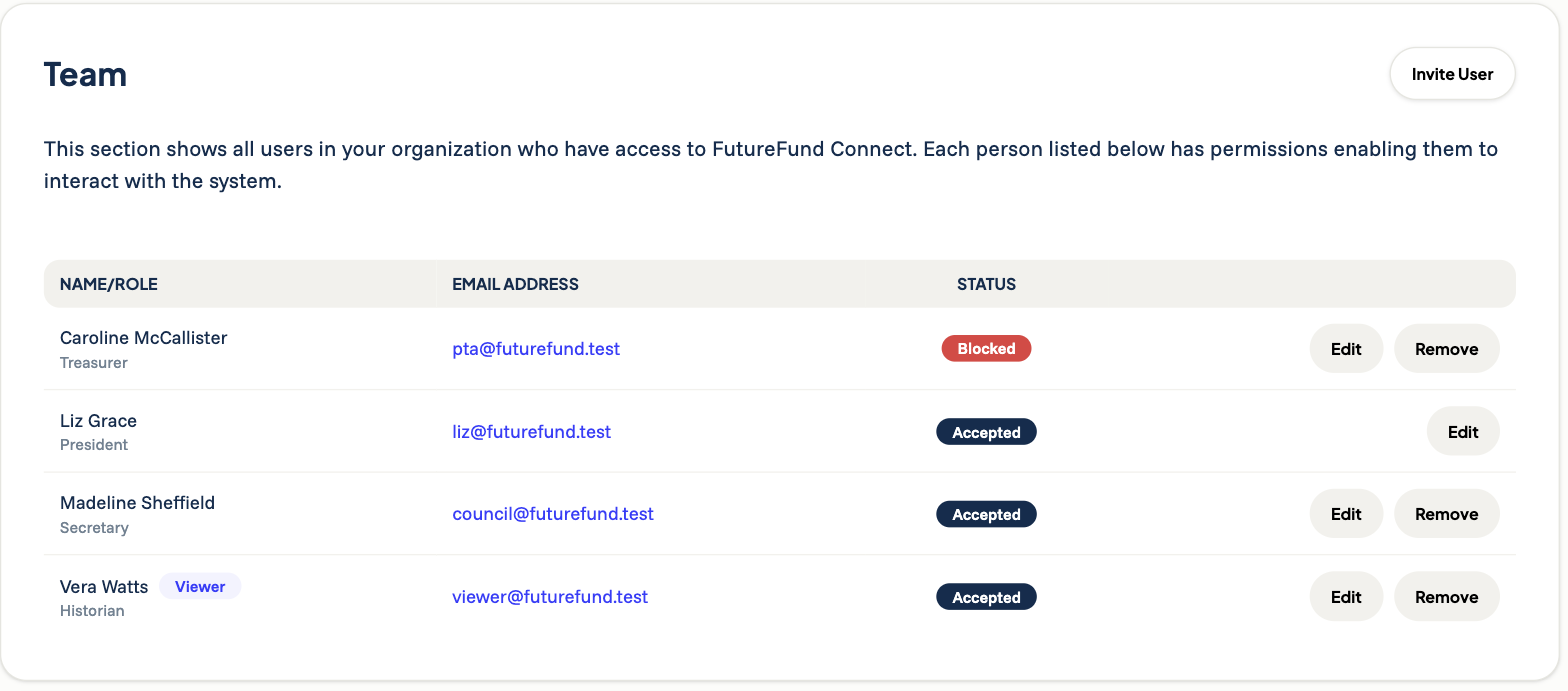
When someone on your board says they can’t sign in, check their status on the Team page first. Notice there’s no reset-password button anywhere on this screen — that’s expected.
The fix depends on which situation they’re in:
They never accepted their invitation. Their status reads Invited or Expired. Click Resend next to their name to send a fresh invitation link and reset the 7-day window. See Team.
They accepted before but forgot their password. Their status reads Accepted. Point them to the steps above. You can’t do this part for them — they need to click Forgot your password? themselves.
Their status reads Blocked. This means email to that address bounced. The Resend button is hidden, because resending would only bounce again. Double-check the spelling of the address first; if it’s wrong, inviting the correct address is the faster fix. Otherwise contact our support team, who can clear the block.
If the Email Doesn’t Arrive
Reset and invitation emails come from no-reply@futurefund.com. School and district email systems filter aggressively, so if nothing shows up:
- Check the spam, junk, and promotions folders.
- Add no-reply@futurefund.com to your contacts or address book so future messages come through.
- Wait a few minutes and try once more before assuming it failed.
- If you’re on a school-issued device or network, try a personal device or your phone’s cellular connection — some district filters block outside mail links.
Tips
- Use a real personal or role inbox you can actually check. Shared addresses like president@yourpta.org work fine, as long as someone monitors them.
- If your PTA hands a shared inbox from one officer to the next, the outgoing officer should reset the password at handoff rather than sharing the old one.
- Turn on two-factor authentication in your FutureFund account for an extra layer of protection on your unit’s records.
- Password trouble at the start of a new school year usually means an invitation was never accepted, not a forgotten password. Check the Team page status first.
Related
- Accepting Your Invitation & Setting Up Your Account — for first-time sign-in.
- Team — invitation statuses, resending, and access levels.
- Roles and Permissions — who can see and do what.
Was this helpful?