Documents
Overview
The Documents page is where your unit keeps its important PTA paperwork in one organized place. You can upload files, see the documents created for you by guided tasks, and check where each one stands in the review process.
Some documents start as a task on your My Tasks list (for example, generating your bylaws). Others you simply upload yourself, such as a financial report or insurance form your state PTA has asked for. This article walks you through both.
Open Documents from the navigation bar under your unit’s name.
Finding a document
The list shows each document with its type, term, status, and who submitted it, newest term first. Two filters at the top help you narrow it down:
- Fiscal Year — show documents from a specific term.
- Document Type — show only one kind of document.
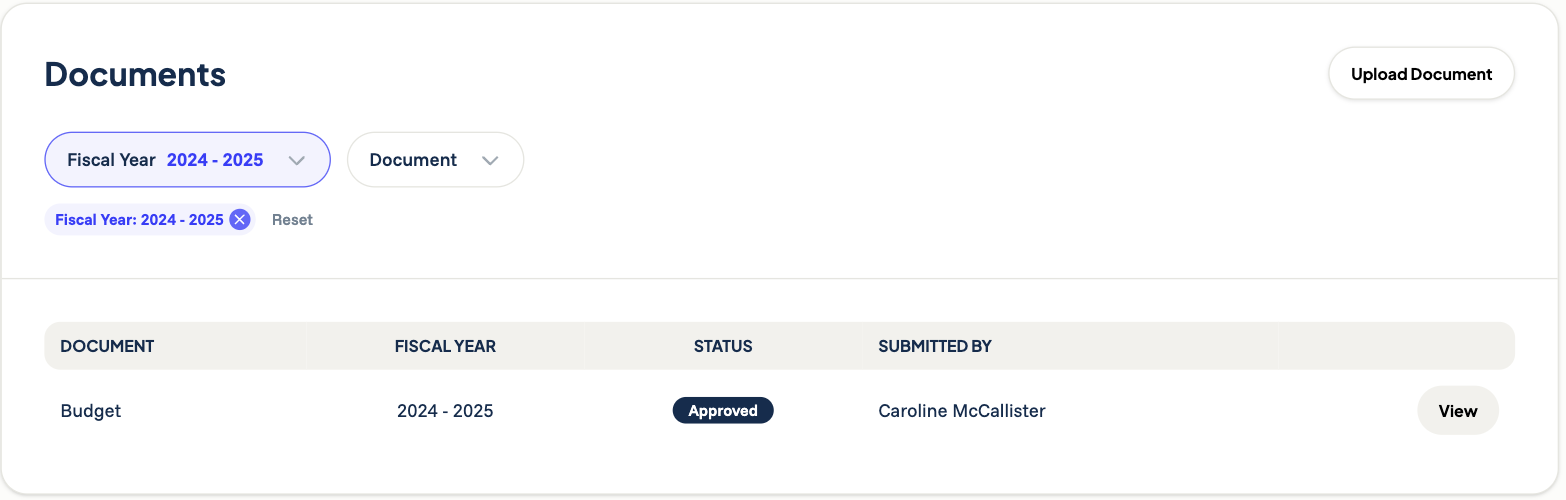
Both filters stick for about an hour, so stepping away won’t lose your place.
Understanding document statuses
Every document shows a status so you always know where it stands:
- In Review — The document has been submitted and is waiting for a reviewer.
- Approved — A reviewer has accepted the document.
- Rejected — A reviewer sent it back. Check the task comments for what to fix.
- Uploaded — You added the document on your own (not tied to a task), so it simply lives in your records.
- Imported — The document was brought over from a previous system.
There is no separate “Submit” button on a document. When a document is part of a task, it is sent for review automatically. Documents you upload on their own are kept as Uploaded and do not need to be submitted.
Uploading a document
- Open your unit’s Documents page.
- Click Upload Document.
- Choose a Document Type from the list, then click Next. (These types are set up by your state PTA.)
- Read the description shown for that type — your state PTA writes it to tell you exactly what’s expected. If a View Sample button appears, open it to see an example.
- Confirm the Term the document belongs to.
- Attach your file (you can attach more than one).
- Click Save.
Your document now appears on the Documents page with the status Uploaded.
File requirements
- Each file must be 25MB or smaller.
- The upload field is set up for PDF, which is what most state PTAs expect. Connect also accepts images (PNG, JPG, GIF, WEBP, HEIC), Word documents, Excel spreadsheets, and plain text or CSV files if you need them.
Adding more files later
- Open the document from the Documents page.
- In the Files section, click Add Files.
- Choose your file and save. The new file is added to the same document.
Viewing and downloading a document
Click View next to any document on the list to open its details page. At the bottom, under Files, each attached file has two buttons:
- View — opens the file in a new browser tab so you can read it without saving it.
- Download — saves a copy to your computer.
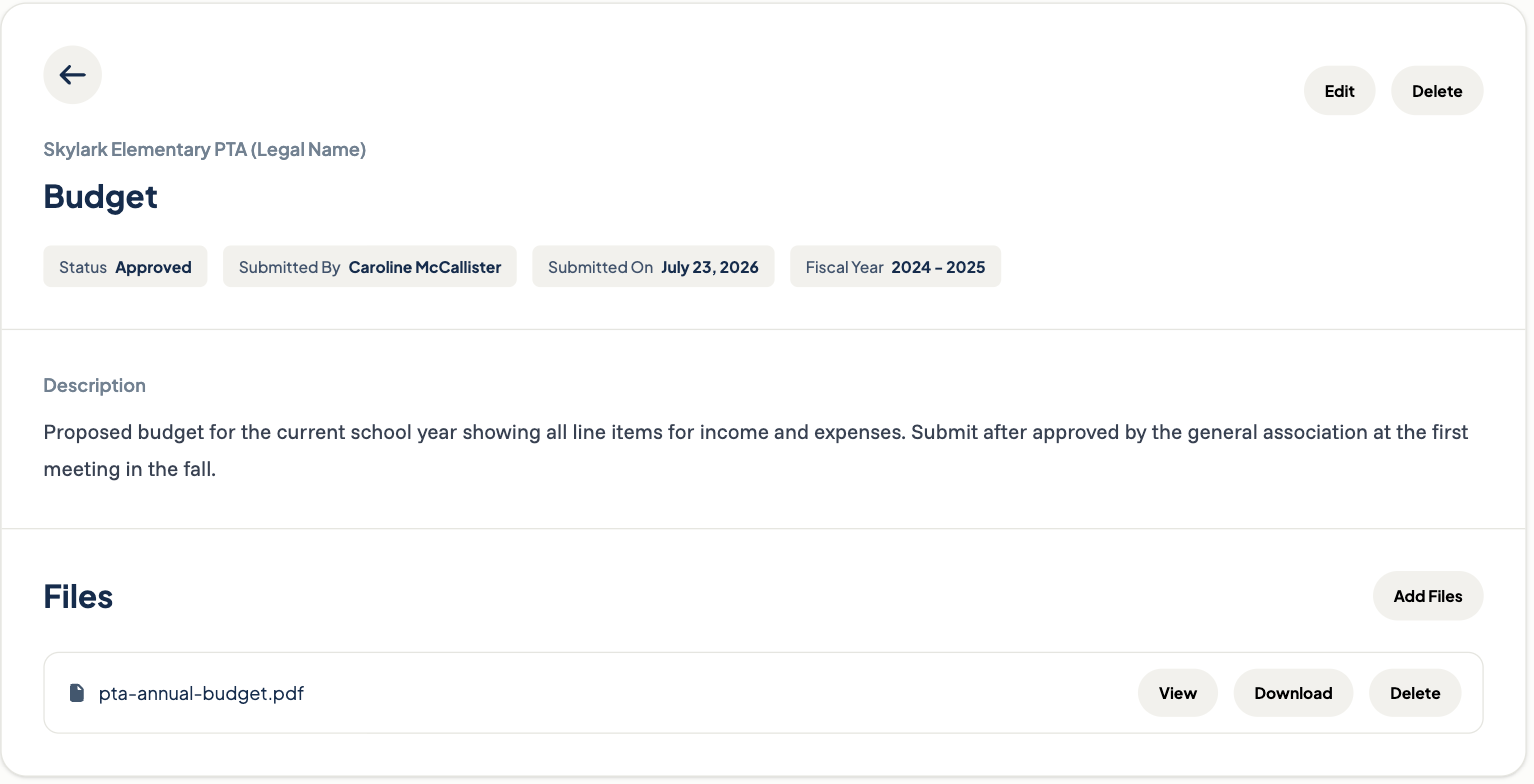
The details page also shows the status, who submitted it, the date, and the term, so it’s a good place to confirm a document is on file before a meeting or an audit.
Editing a document’s type or term
If you picked the wrong document type or filed something under the wrong year, you can usually correct it:
- Open the document and click Edit.
- Update the Document Type and/or Fiscal Year.
- Click Save.
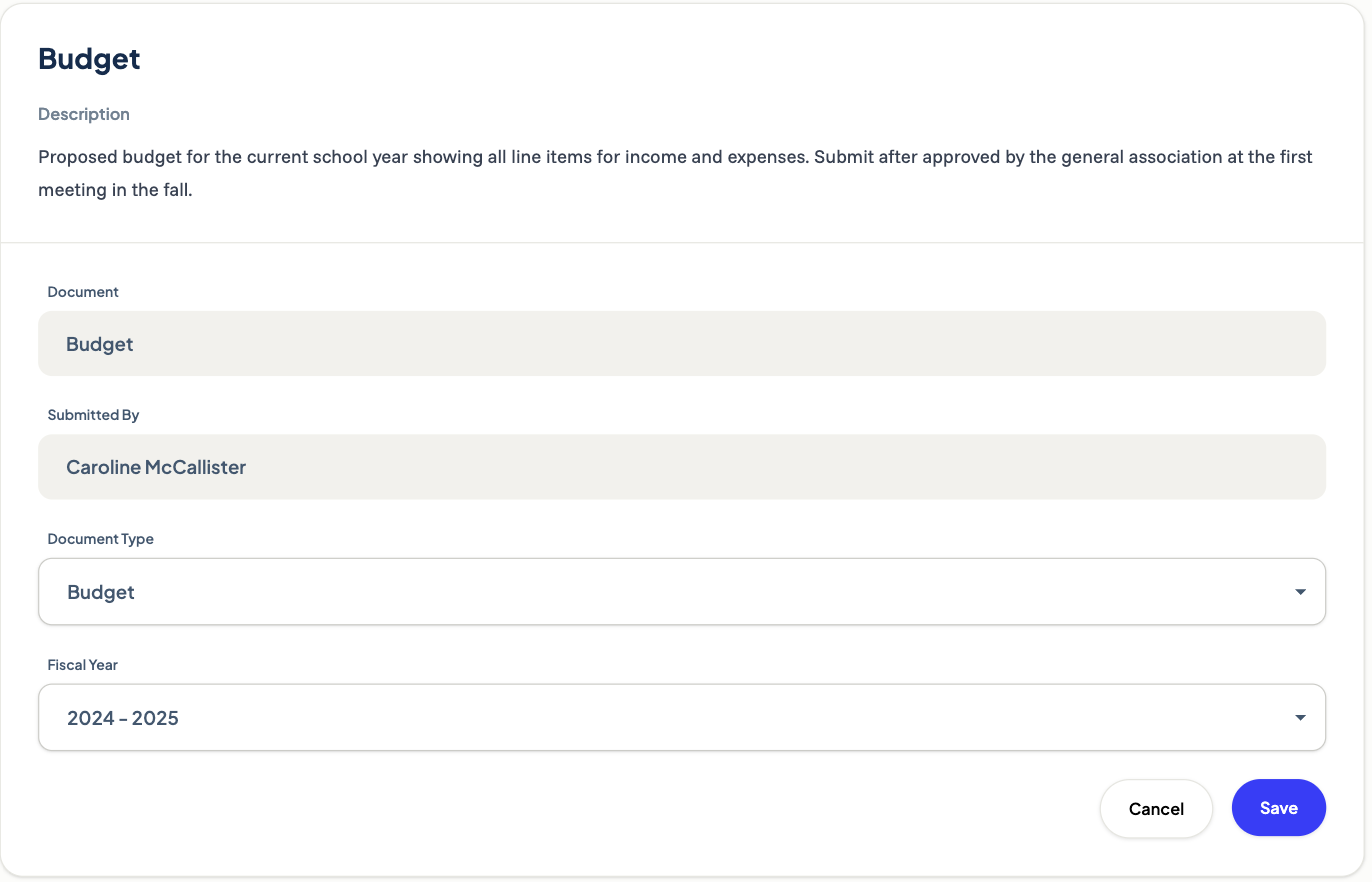
There’s an important exception. Documents tied to a task can’t have their type or term changed — those are set by the task itself, and the term is shown as read-only. Documents you uploaded on your own can be changed freely.
If you need a change you can’t make yourself, reach out to your council or district for assistance.
Generated documents (the guided bylaws flow)
Some documents, such as your bylaws, are created for you through a guided process instead of being uploaded. These usually start as a task on your My Tasks list.
When you open one of these tasks, you’ll see a short, step-by-step screen:
- Start the guided process — Click Start Task to begin answering the questions. If you’ve already started and stepped away, the button reads Resume Task and picks up where you left off. Work through the questions with Next, and use Cancel to step out at any time — your answers are kept.
- Review the draft — Click View Draft to open a draft copy of the document in a new tab. The draft opens with a watermark so everyone knows it isn’t final yet. Read it over to make sure everything looks right.
- Make changes — If something needs fixing, click Make Changes to return to the guided questions and update your answers. Your draft updates automatically.
- Submit for Review — Once the draft looks correct, click Submit for Review. The document is sent to the right reviewer(s) automatically based on your organization’s approval chain.
While the document is in review, you can still View Draft, and the person who submitted it can Withdraw Submission to make changes.
After approval, the final version is saved without the draft watermark.
For a full walkthrough of the bylaws process specifically, see Submitting Your Unit Bylaws.
Why use the guided process
The guided process fills in the document using information already in FutureFund Connect, so you type less and make fewer mistakes. It also formats things for you — for example, turning a number like 15.00 into $15.00 or “fifteen dollars and zero cents.”
For documents you resubmit on a regular cycle, like bylaws, your state PTA can also turn on a setting that starts a new task off with your organization’s own answers from its last approved submission of that same document, along with any files attached to it. If that’s turned on for a document, opening the task shows those answers already filled in — you just review them and update anything that’s changed before submitting. Submissions still pending, in review, or rejected are never used this way, only an approved one.
Reviewing and approving (council, district, and state roles)
If you hold a reviewing role at a higher level, a submitted document will appear as a task for you. You can review the file, then approve it or reject it. When you reject something, please add a reason in the comments so the unit knows what to fix.
Deleting a document
Open the document and click Delete at the top of the page. You’ll be asked to confirm first.
You’ll only see the Delete button if you can make changes for your unit. If you have view-only access, it won’t appear.
Who can delete a document depends on how it got there:
- Documents made through the guided process (such as bylaws) can’t be deleted from your account. FutureFund support can remove one for you.
- Imported documents (status Imported, brought over from a previous system) can only be deleted by someone at your district or state PTA.
- All other documents, including ones you uploaded yourself:
- Your council, district, or state PTA can delete them at any time.
- Unit members can delete them within 3 days of uploading. After that, ask your council or district.
Being attached to a task doesn’t stop a document from being deleted. If that task was already Approved, deleting the document sets the task back to Pending so a new document can be submitted.
When Delete is greyed out
If you can’t delete a document, the Delete button is greyed out. Point to it to see a note telling you who can help:
- “Contact FutureFund support to delete this document.” means it was made through the guided process.
- “Contact your district admin to delete this document.” means it was imported.
- “Contact your council or district admin to delete this document.” means the 3 days have passed.
The Delete button next to a single file under Files follows the same rules. If you can’t delete the document, that button won’t appear.
Tips
- If a document is Rejected, open the related task and read the reviewer’s comments for exactly what needs to change. Every document page has a View Activity link that takes you straight to its task.
- Keep your unit’s board roster and financial details up to date so guided documents come out accurate.
- Document types are managed by your state PTA. If you need a new type or notice a problem, reach out to your state PTA administrator.
- An administrator can use the Regenerate action on a generated document to rebuild it from your latest answers if needed.
Was this helpful?