Submitting Your Unit Bylaws
Overview
Your bylaws are your unit’s governing document, and most state PTAs ask units to refresh and resubmit them on a regular cycle.
In FutureFund Connect you don’t write your bylaws from scratch or upload a file. Instead, you answer a short set of guided questions, and Connect assembles the document for you using information it already has about your unit. When you’re happy with the draft, you submit it and it travels to your council or district for review automatically.
This article walks the whole process end to end.
Before You Start
A few minutes of preparation saves a round of corrections:
- Check your unit information. The generated document pulls from your unit’s record — legal name, address, EIN, and fiscal year. If something is out of date, fix it on your unit’s Edit page first.
- Check your board roster. Make sure your current officers are listed on Board Members for the current term.
- You need Member access. Viewers can read along and follow the task, but can’t submit it. See Roles and Permissions.
Step 1: Open the Bylaws Task
If you belong to more than one organization, pick your unit first.
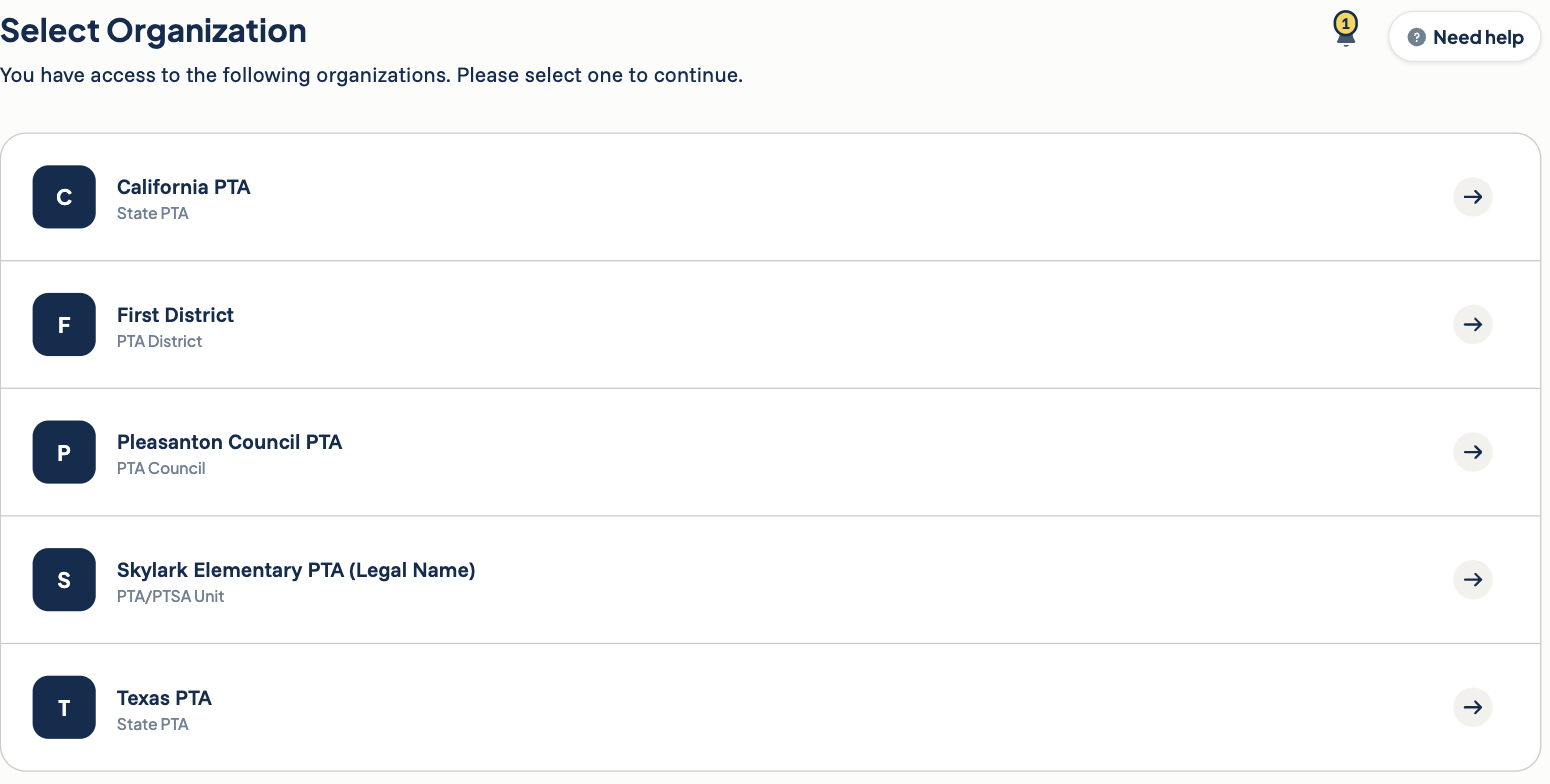
In most cases the bylaws task is already waiting for you. Look under My Tasks in the left sidebar, or open your unit and click Tasks in the navigation bar.
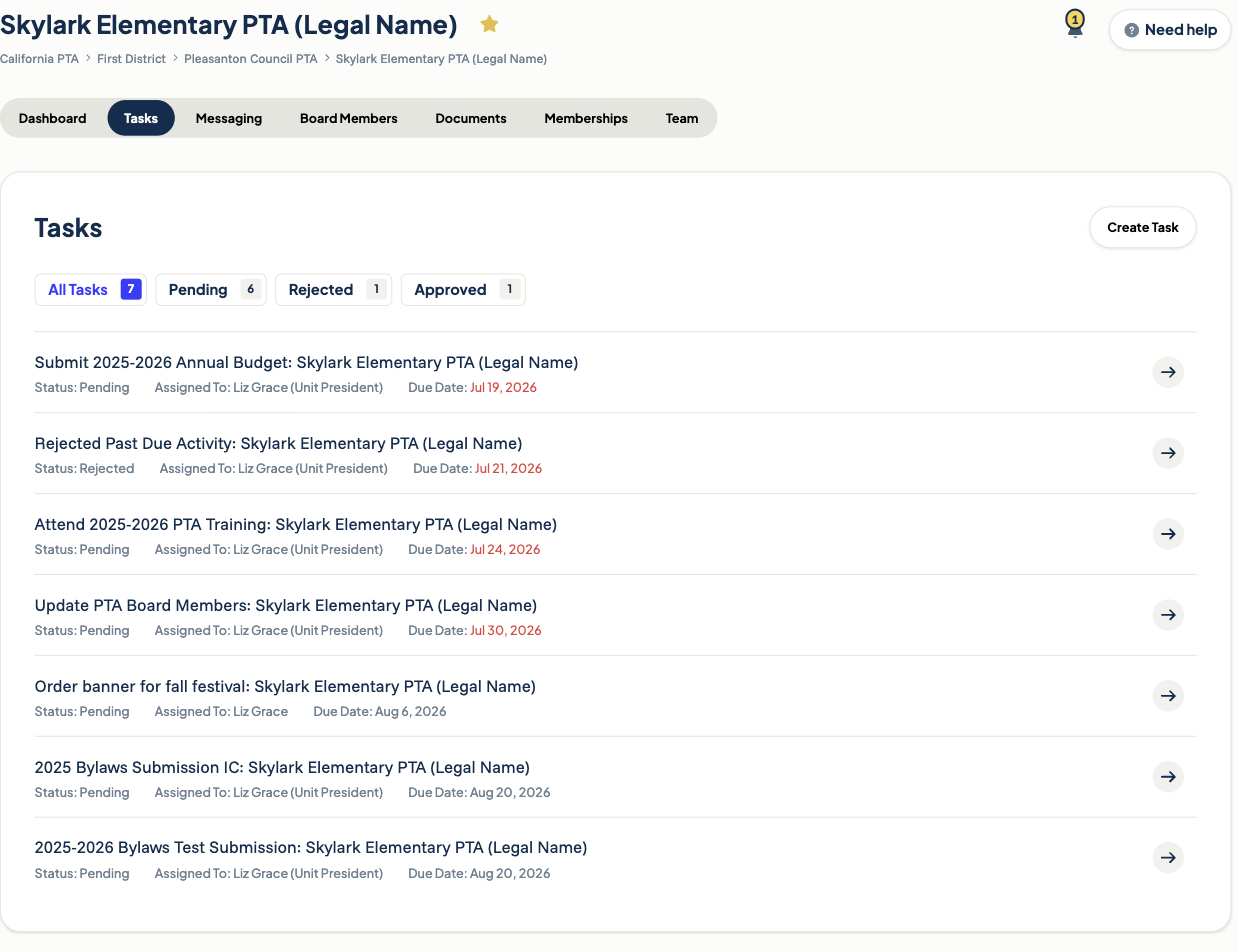
If you don’t see it, you may be able to create it yourself:
- Open your unit and click Tasks in the navigation bar.
- Click Create Task.
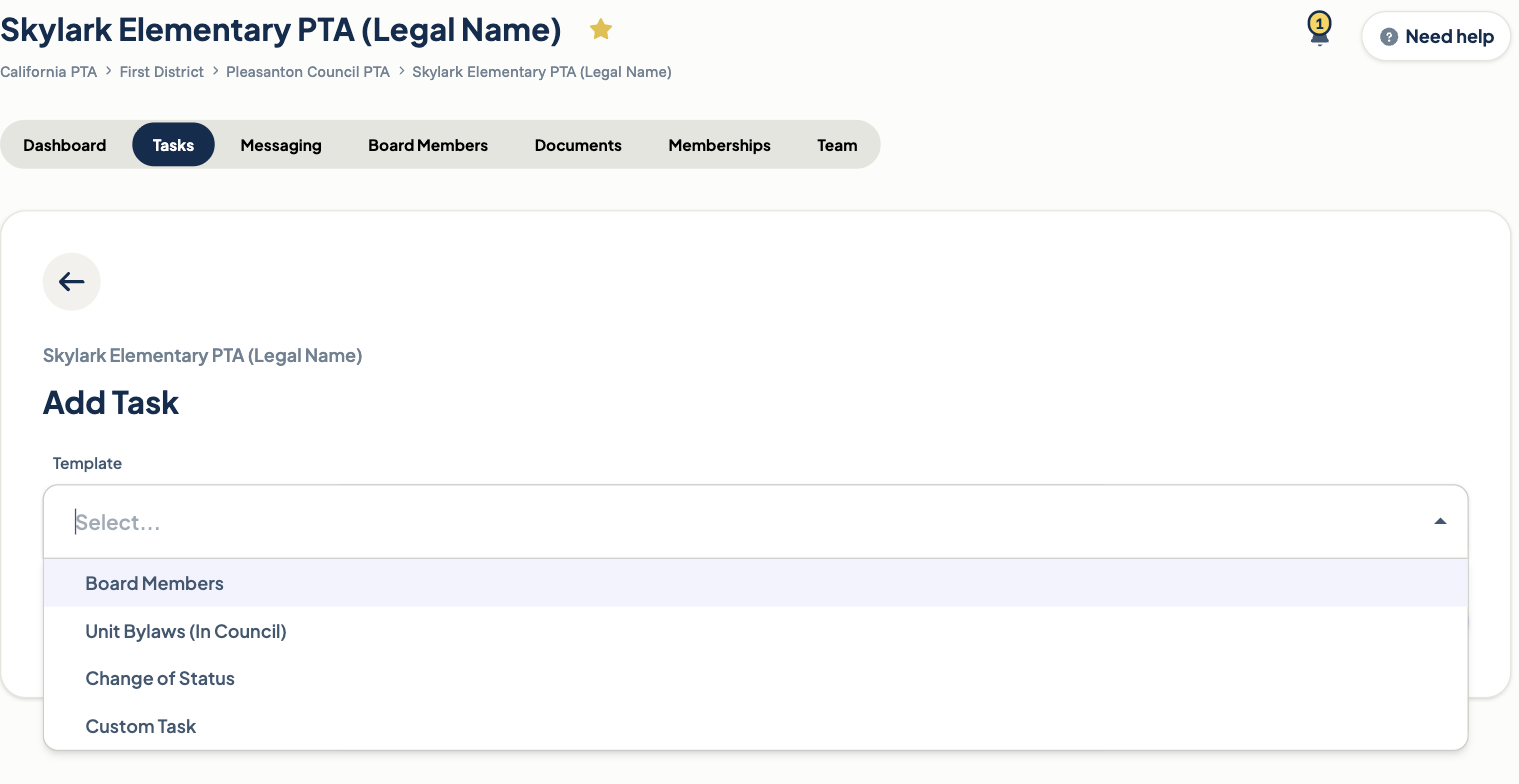
- In the Template dropdown, choose your state’s bylaws template (often named something like Unit Bylaws).
- Save.
The task is created with its title, description, due date, and approval steps already filled in — those come from the template, so you don’t set them yourself.
If the bylaws template isn’t in the dropdown, your state PTA hasn’t made it available for manual creation. Reach out to your council or district and they can help.
Step 2: Answer the Guided Questions
Open the task. Along with the status and due date, you’ll see a Workflow strip showing every level the task passes through — Unit, Council, District, State — so you know where it’s headed.
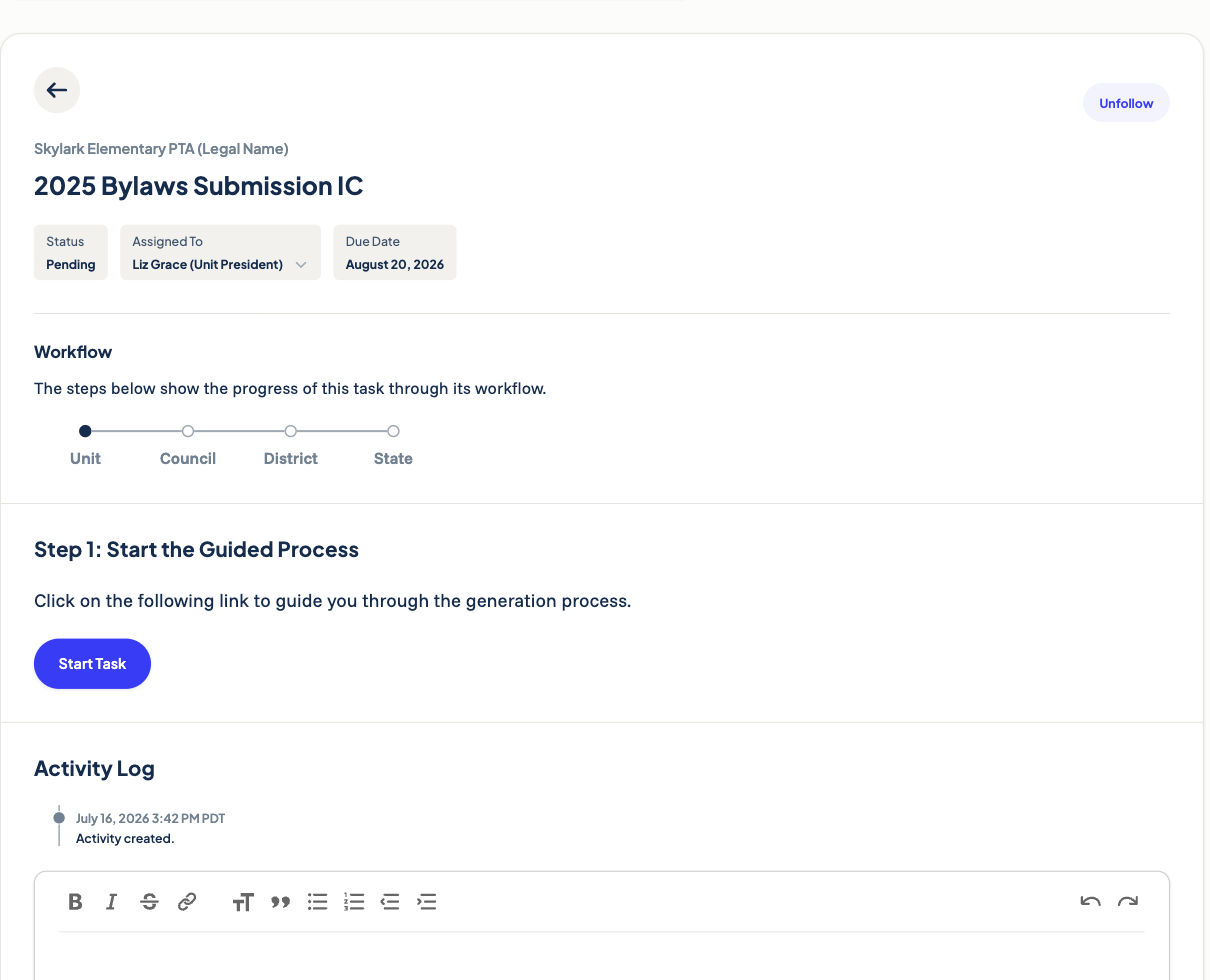
- Click Start Task.
- Work through the questions, clicking Next as you go.
- If you need to step away, click Cancel — your answers are saved. When you come back, the button reads Resume Task and picks up where you left off.
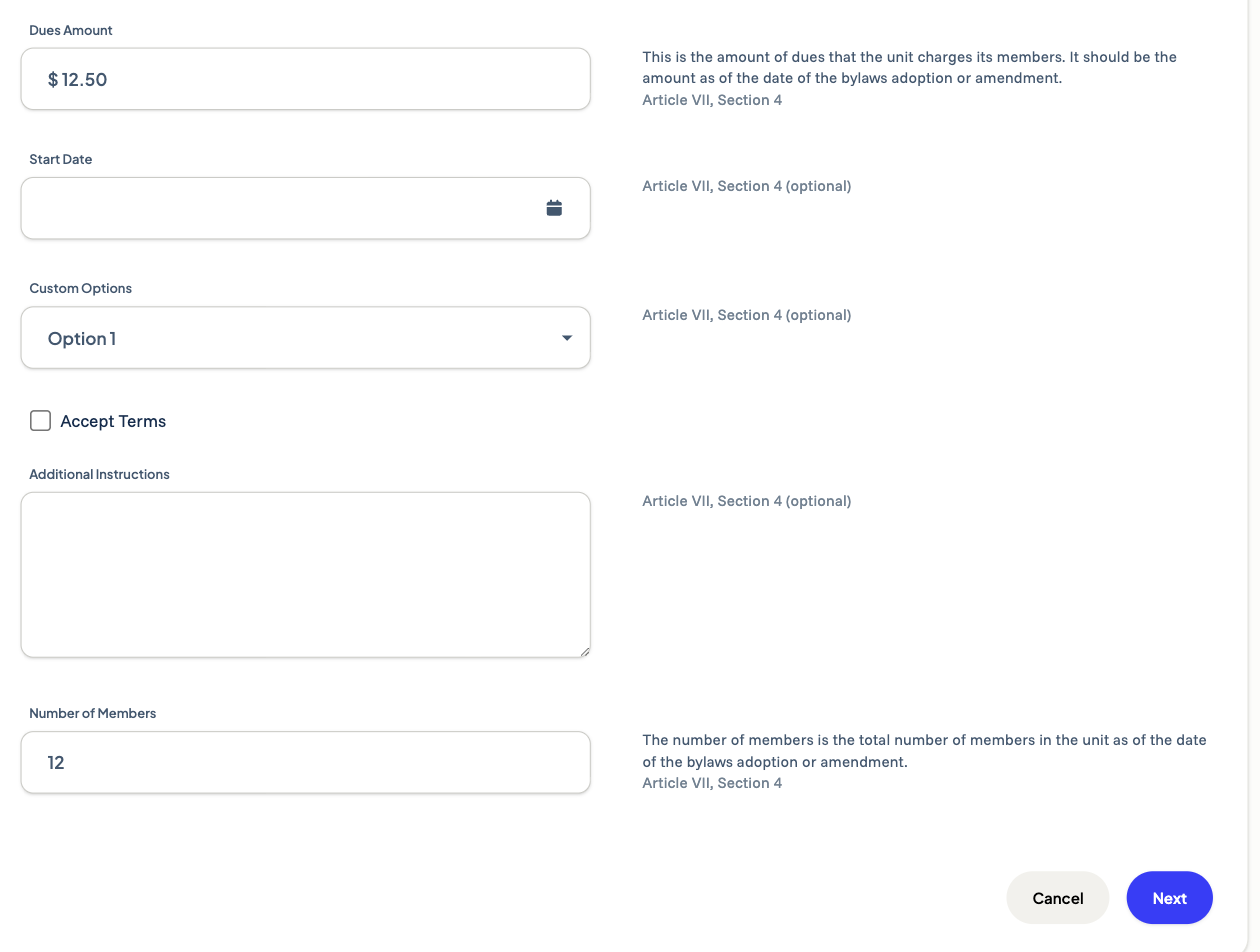
The questions are written by your state PTA, so they match what your state requires. Connect formats your answers for you — for example, turning 15.00 into $15.00 or “fifteen dollars and zero cents” where the document calls for it. Many fields cite the article and section of the bylaws they feed, so you can check your work against your existing document.
Some state PTAs turn on a setting that starts your new bylaws task off with the answers from your unit’s own last approved bylaws — so instead of a blank form, you’ll see last year’s answers already filled in. If you see this, just go through and update anything that’s changed (a new dues amount, an updated membership count, and so on) before moving on. If your state hasn’t turned this on, or this is your unit’s first bylaws submission, you’ll start from a blank form as usual.
Step 3: Review the Draft
When you finish the questions, you land on a three-step review screen.
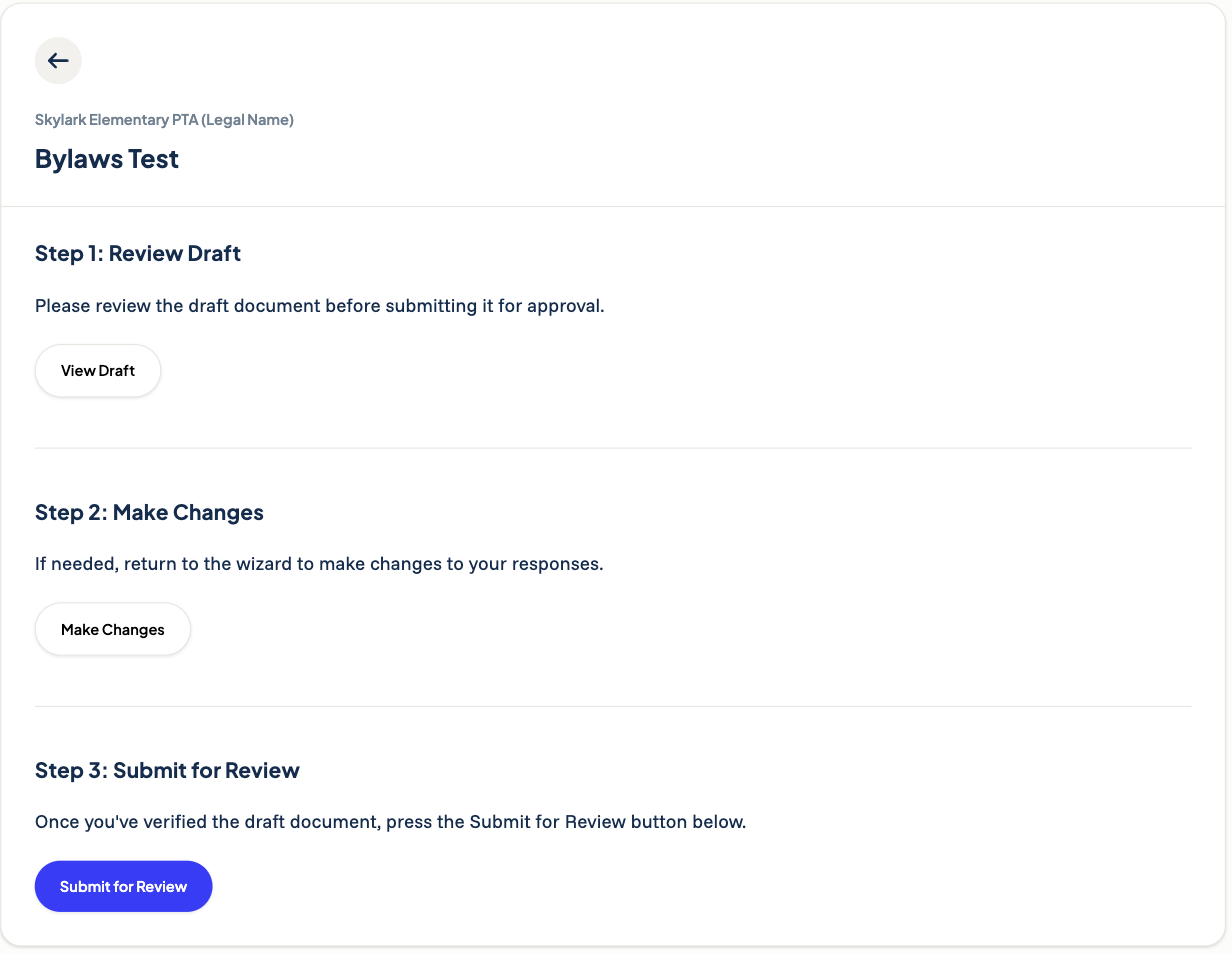
- Click View Draft. The document opens in a new tab with a draft watermark, so nobody mistakes it for the final version.
- Read it over carefully and confirm the details are accurate.
- If something needs fixing, click Make Changes to go back to the questions and update your answers. Your draft is rebuilt automatically.
It’s worth reading the whole document rather than skimming — catching a wrong dues amount here is much easier than after it’s been through review.
Step 4: Submit for Review
When the draft looks right, click Submit for Review.
The task moves to In Review and is routed to the right reviewer at your council or district based on your organization’s approval chain. You don’t choose who receives it. You’ll be notified by email when they approve or reject it.
If your unit’s bylaws task has only one step and needs no separate reviewer, the button reads Close and Approve instead, which finishes the task in one action.
After You Submit
Making changes while it’s in review
If you spot a mistake after submitting, the person who submitted it can click Withdraw Submission. This pulls the task back so you can use Make Changes and resubmit.
Withdrawing restarts the approval process from the beginning. Anyone who had already approved it will need to approve the new version.
If your bylaws are rejected
A rejected task comes back to your unit. Open it and read the reviewer’s comments — they explain what needs to change. Click Make Changes, update your answers, and click Submit for Review again.
Once approved
The final version is saved to your unit’s Documents page without the draft watermark, and the task status reads Approved. Your dashboard’s Bylaws status card updates too.
Tips
- Update your unit information and board roster before you start, not after — the document is built from that data.
- Click Follow on the task if you’re not the assignee but want to know when it’s approved.
- Use the task’s comments to ask your reviewer a question rather than submitting something you’re unsure about.
- Every document page has a View Activity link that takes you straight back to its task, which is the fastest way to find reviewer feedback later.
Related
- Tasks — how tasks, statuses, routing, and approvals work generally.
- Documents — where your approved bylaws are stored, plus uploading other paperwork.
- Understanding Your Dashboard Status Cards — what the Bylaws card is telling you.
Was this helpful?