Donation Drive Campaign
Use a Donation Drive campaign (formerly called Fundraiser) to set a goal and collect donations for a project or achievement, no event required.
Donation Drive campaigns were previously called **Fundraiser** campaigns. For a while, the campaign builder shows “Donation Drive (formerly Fundraiser)” so the new name is easy to spot. Existing campaigns work exactly as before.
Use a Donation Drive to ask supporters to give directly, no event required. If you’re planning a Fun Run, Read-A-Thon, or Jog-A-Thon where friends and family donate to cheer on your students, use a Pledge-A-Thon campaign instead.
Preview
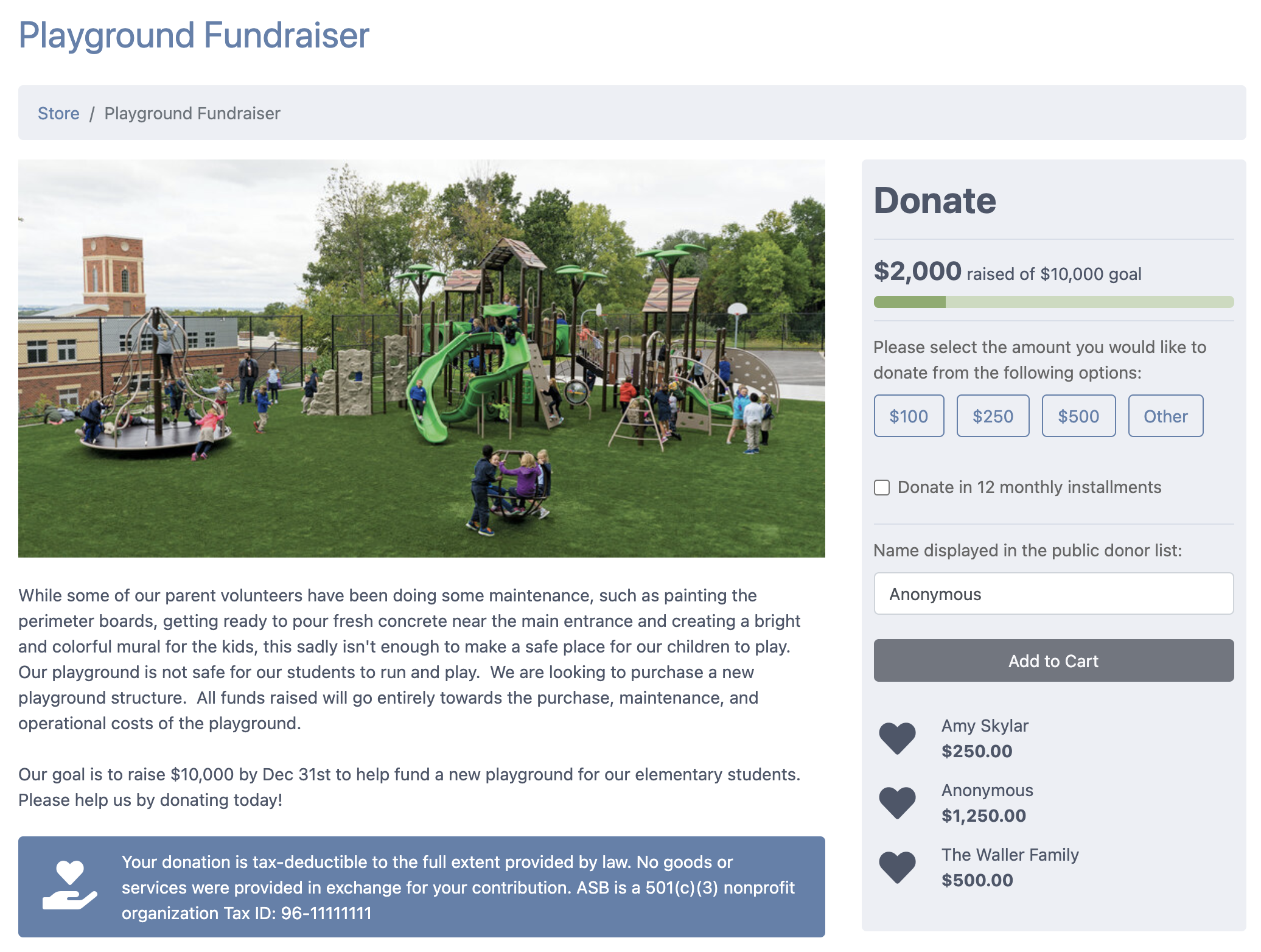
Store
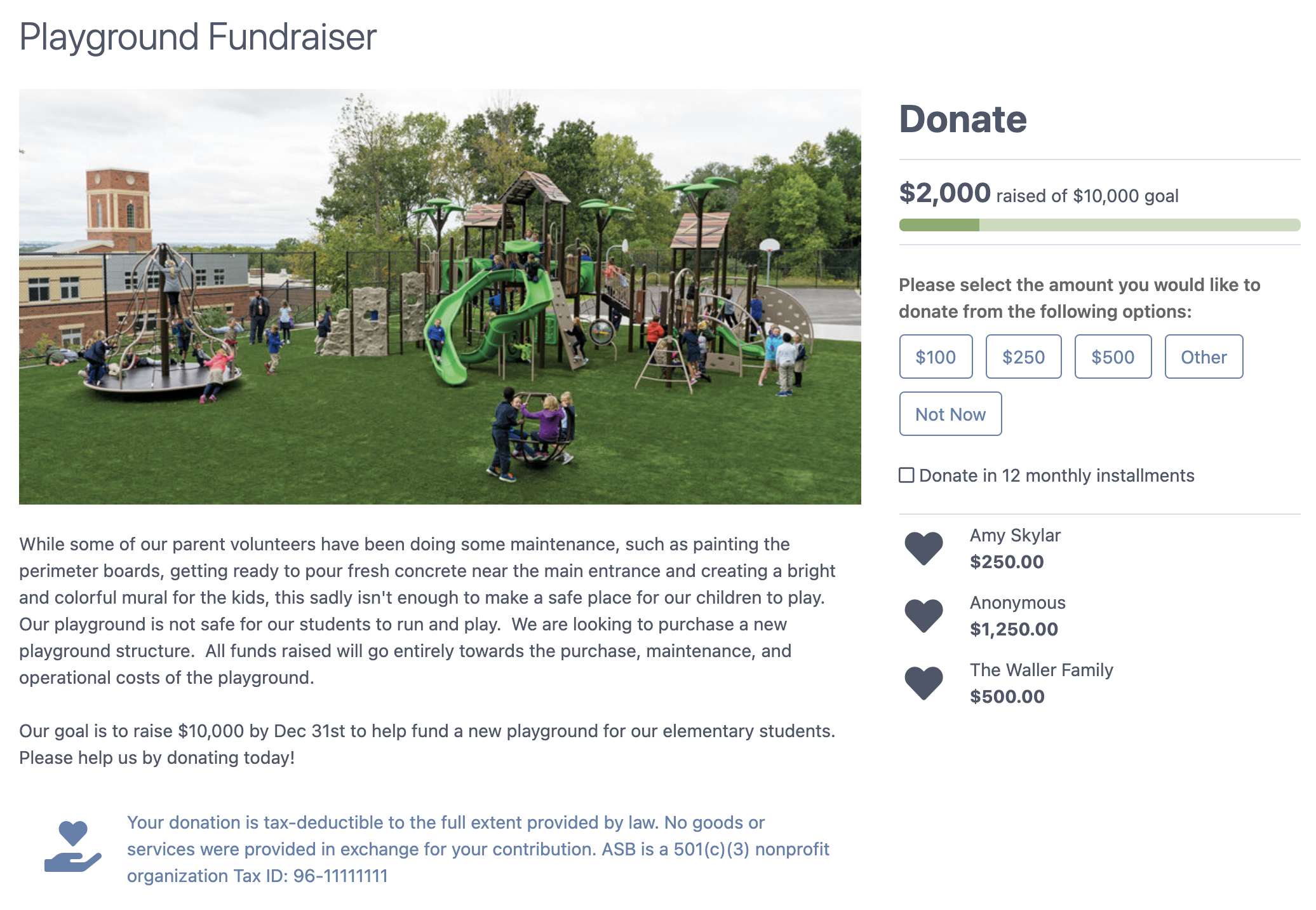
First Step
Options
When creating the campaign, the following options are specified:
| Option | Required | Description |
|---|---|---|
| Name | Yes | The name of the campaign |
| Description | No | A rich text description of the campaign. |
| Campaign Type | Yes | Must be set to Donation Drive. This cannot be changed once the campaign is created. |
| Organization | Yes | The organization to associate with purchases from campaign. This cannot be changed once the campaign is created. |
| Amount | Yes | Specify up to four amounts for parents to select when donating. One amount is required. |
| Goal Amount | Yes | The goal amount for the campaign. This is displayed as a goal meter in the campaign. |
Donation Drive campaigns also show a “Who is this purchase for?” picker so you can decide whether a donation should be linked to a student, a parent, or no one at all. See Attribution for details.
Advanced Options
The following advanced campaign options are available for Donation Drive campaigns, tucked behind the Advanced settings link at the bottom of each tab:
- Tax Deductible
- Let Donors Enter a Custom Amount
- Show the “Not Now” Button (during First Step)
- Show Donor Wall
- Installments
- Sell in Online Store
- Not for Sale in Store
- Show in Storefront
- Store Category
See Configuring Campaigns for detailed information on campaign options.
Notes
- The amount raised does not account for processing fees. The amount represents the gross amount instead of the net amount.
- The campaign will continue to collect donations once the goal amount has been reached.
- Contact support if your campaign needs to start at an amount other than $0. For example, there are cases when donations have already been made outside of FutureFund and the Admin wants the amount raised to reflect the total donations.
Was this helpful?