Offline Payments
Offline payments allow parents to pay for their First Step purchases with a check or cash. It is the responsibility of the administrator to collect and record the cash or check payment.
When the check option is enabled, the purchaser is able to pay for the order using a credit card after initially selecting the check payment option. When this happens, fees are not charged to the purchaser, they are charged to the organization. To avoid this scenario, disable the check option.
Enabling Offline Payments
- In the Admin, click Account Settings.
- Under Payments, click Online Store.
- Click Advanced settings to open more options.
- Check Allow offline payments, and confirm when asked.
- Click Save.
This one setting turns on cash and check for both the Online Store and First Step.
Once enabled, purchasers see the cash or check option at checkout when both of these are true:
- The order is $100 or more.
- The order has no event tickets in it.
Orders with tickets are always paid by card at checkout. To take a check for tickets, see Paying for Tickets.

Recording Offline Payments
After the order is placed, administrators can record the receipt of checks or cash by:
- In the Admin, navigate to Orders & Payouts.
- Find the order you are receiving payment for (Search for the order number or purchaser’s name).
- Scroll to the Payment Information section, click on the View button next to the desired transaction.

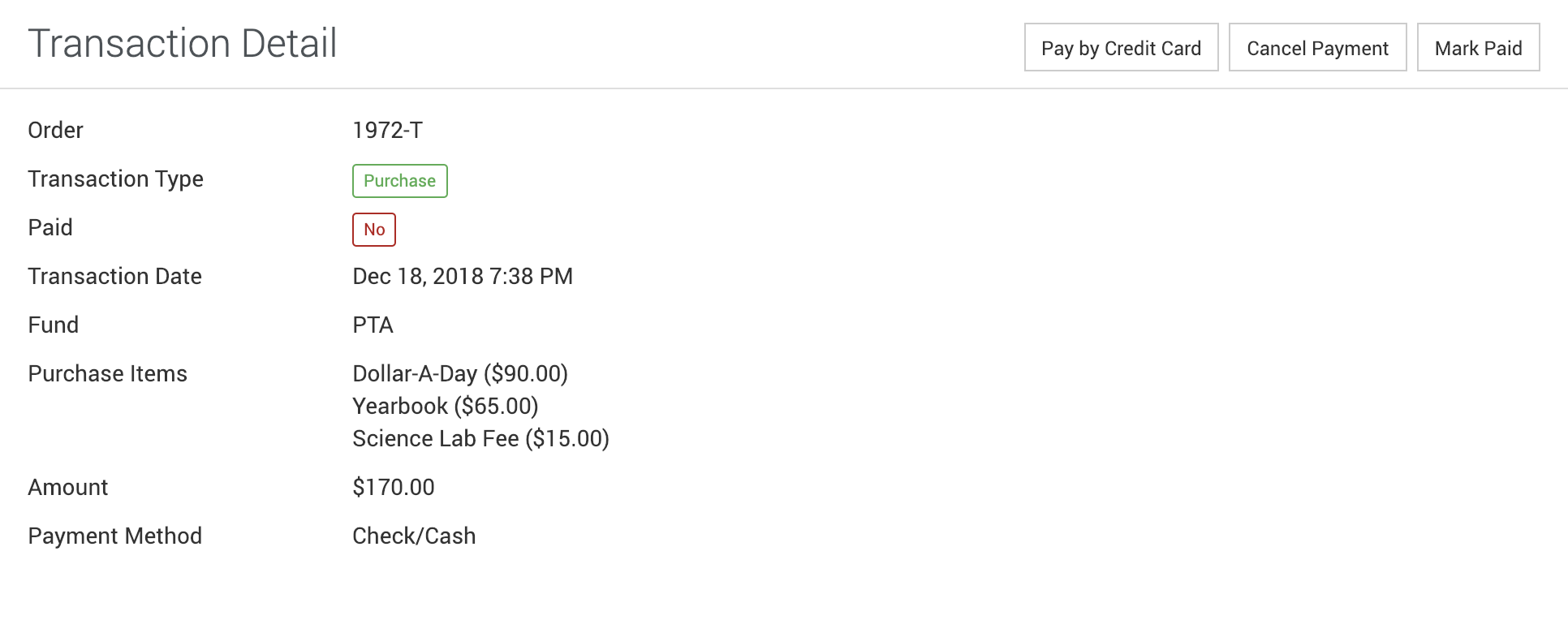
- The transaction detail will show the item is not paid. Click the Mark Paid button.
- Enter the check number or leave blank for a cash payment.
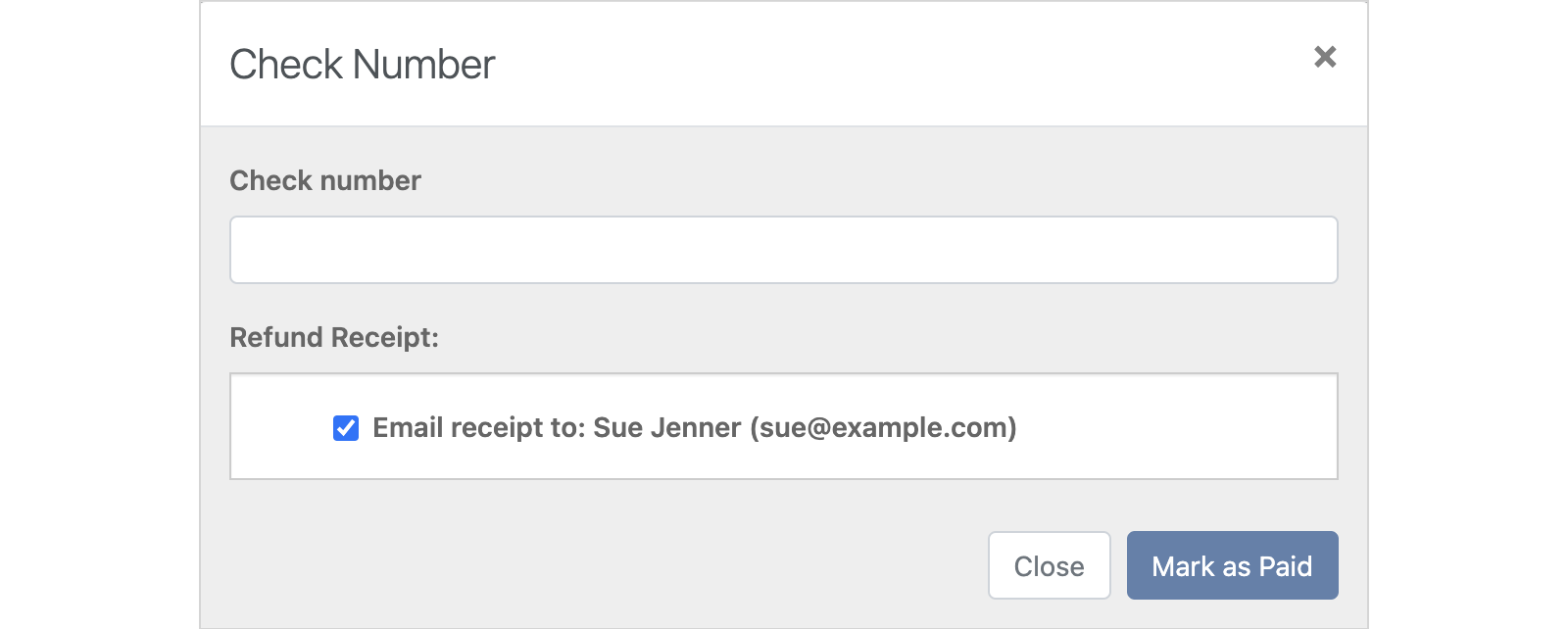
- Once entered, the Paid attribute is changed and the transaction activity log reports who received the payment.
Was this helpful?