Payouts
When Payouts Happen
Money from each sale becomes available to pay out 10 days after the sale. Until then, it shows as Pending Balance. Once a week, on Wednesday, everything that has become available is sent to your bank account as one deposit.
You can see both balances by clicking your name at the bottom of the left-hand menu, then Account Settings > Bank Information (called Organizations if your account has more than one).
Your First Payout
Before a new organization’s first payout, FutureFund does a short review of the account. Until that review is finished:
- Orders & Payouts > Payouts shows “No Payouts”.
- Your money still shows as Available Balance, and your sales are recorded as usual.
If you have money in your Available Balance and still see “No Payouts”, email us at support@futurefund.com and we’ll check on it.
Payout Report
Payouts can be viewed in the Admin by navigating to Orders & Payouts > Payouts.
The report shows one row for each deposit with the following columns:
| Column | Description |
|---|---|
| Date | Date of the deposit |
| Organization | The name of the organization |
| Status | Status of the deposit (Paid, In Transit, Failed, etc) |
| Amount | Amount of the deposit (negative for withdrawals) |
If your account has more than one organization, use the Fund filter at the top of the list to see one organization’s deposits.
Click the View button to see the transactions that make up a deposit. To download several payouts at once, use Bulk Export (see below).
Summary View
Clicking View opens the Payout Summary page. A sample is included below:
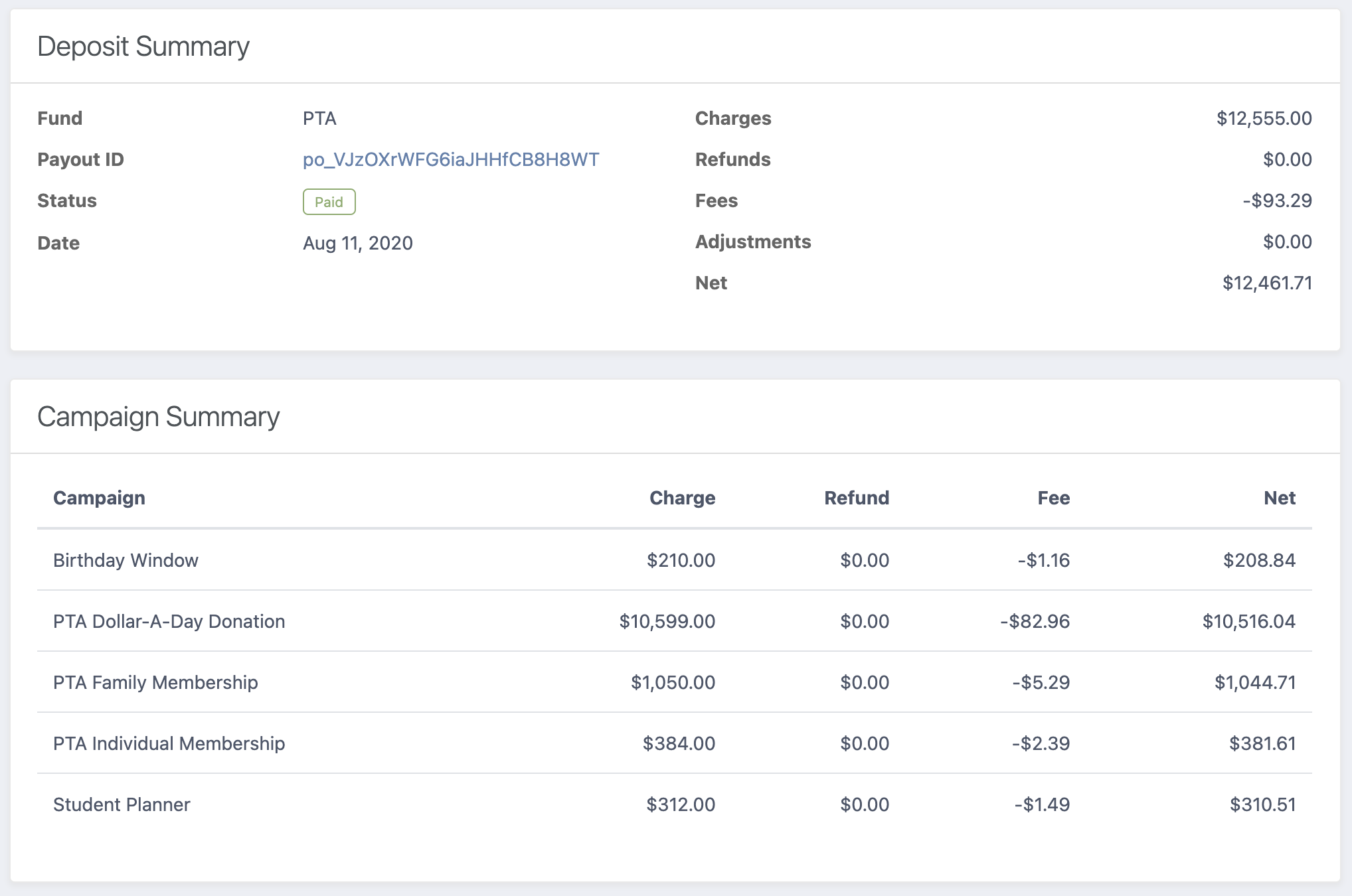
The two boxes at the top show the deposit itself:
- Organization, Payout ID, Status and Date.
- The totals: Charges, Refunds, Fees and Net, plus Sales Tax when the payout includes any.
When a non-FutureFund transaction is included in the payout, the amount shows as an Adjustments row in the totals box. FutureFund will not be able to provide additional information on the amount.
Below them, the Payout Detail table breaks the deposit down by campaign:
| Column | Description |
|---|---|
| Campaign | The name of the campaign in the default language. |
| Charge | The money collected for the campaign in this payout. |
| Refund | The sum of the refunded transactions. This is always a negative number. |
| Fee | The sum of the fees for a set of transactions. Transaction fees are calculated for each campaign with an accuracy +/- $0.01. The transaction fee of $0.30 is distributed evenly based on the dollar amount of the items. |
| Sales Tax | Sales tax collected for the campaign. This column only appears when the payout includes sales tax. |
| Net | Charge, less refunds and fees, plus any sales tax. |
Bundle Breakdown
If a campaign is sold both inside a bundle (like a family membership package) and on its own, the campaign’s row still shows the full total — that’s the number that reconciles to your deposit. Underneath it, you’ll see smaller, indented rows that split the total by where the money came from: the name of the bundle it was sold inside, or “Purchased on its own.”
This split is informational only, so you can tell at a glance how much of a campaign’s revenue to post to which income account. It only appears for campaigns that were actually sold both ways — if every sale came in the same way, there’s nothing to split and no extra rows show up.
Exported Fields
On the Payout Summary page, click Actions at the top right to download a payout.
Export Summary downloads one row per campaign with these columns:
| Column | Description |
|---|---|
| Campaign | The name of the campaign in the default language. |
| Charge | The money collected for the campaign in this payout. |
| Refund | The sum of the refunded transactions. This is always a negative number. |
| Fee | The sum of the fees for a set of transactions. Transaction fees are calculated for each campaign with an accuracy +/- $0.01. The transaction fee of $0.30 is distributed evenly based on the dollar amount of the items. |
| Sales Tax | Sales tax collected for the campaign. |
| Net | Charge, less refunds and fees, plus any sales tax. |
Export Detail downloads one row per order with these columns:
| Column | Description |
|---|---|
| Payout ID | ID for the payout |
| Order Date | The date the order was placed |
| Order Number | The number of the order |
| Purchaser First Name | The first name of the person who placed the order |
| Purchaser Last Name | The last name of the person who placed the order |
| Campaign | The name of the campaign in the default language. |
| Bundle | The name of the bundle the item was sold inside, blank if it was purchased on its own. |
| Quantity | Number of units sold (donations will always be one) |
| Charge | The money collected for this item in this payout. |
| Refund | The sum of the refunded transactions. This is always a negative number. |
| Fee | The fees for this item. |
| Sales Tax | Sales tax collected for this item. |
| Net | Charge, less refunds and fees, plus any sales tax. |
If any of your campaigns are sold both inside a bundle and on their own, the Actions menu also has Export Bundle Summary. It downloads a CSV with one row per campaign per source (bundle name, or “Purchased on its own”), with Charge, Refund, Fee, Sales Tax, and Net for each slice. Sum the rows for a campaign and you’ll land back on that campaign’s total from the Summary export — this file exists to show the split, not to replace the totals you already reconcile against.
Bulk Export
When reconciling many payouts, we provide a bulk export tool for the Payout summary information.
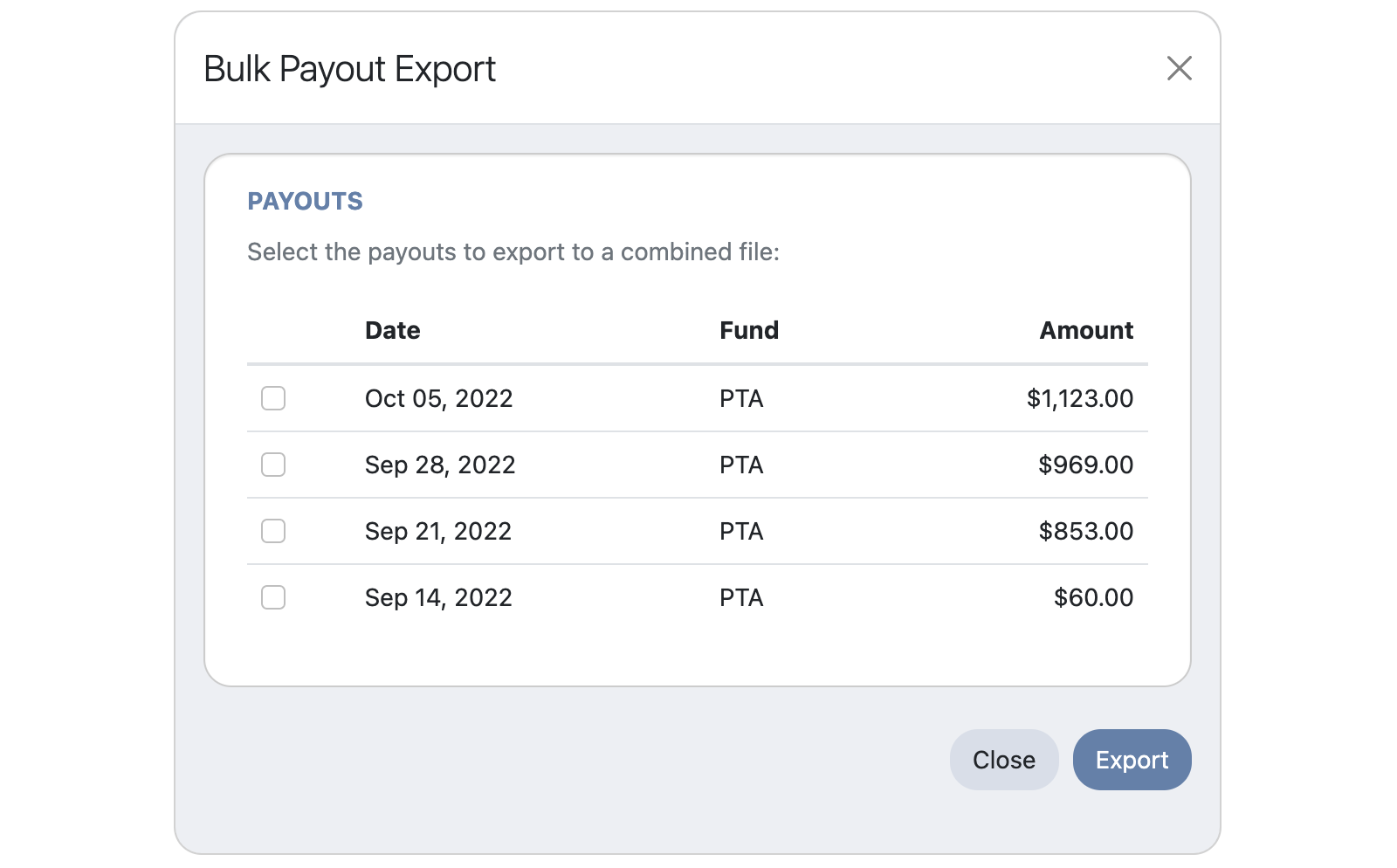
To access the bulk export tool:
- Navigate to Orders & Payouts > Payouts.
- Click the Bulk Export button at the top right of the Payouts list.
- Check the payouts you wish to export.
- Click the Export button to download the file.
- Click the Close button when done.
The export window shows the payouts on the page of the list you’re viewing. To export payouts from another page, close the window, go to that page, and click Bulk Export again.
If you don’t see the Bulk Export button, your team access is set to Viewer. Ask an Administrator on your account to export for you or to change your access.
Recording Payouts Automatically in BeeKeeper
If your organization also uses BeeKeeper for its books, you don’t have to export payout reports and enter them by hand. Connect FutureFund to BeeKeeper from Settings > FutureFund in BeeKeeper, and each payout is recorded automatically as a journal entry — mapped to the right income account per campaign, with processing fees tracked separately if you’d like. See FutureFund Payouts in the BeeKeeper help center for setup steps.
Was this helpful?