Corporate Matching
Program Overview
FutureFund’s corporate matching works as follows:
- During First Step, parents supply their employer information in the Sign Up page. If they are returning, their employer will be populated.
- Store shoppers and Pledge campaign donors give their employer in other ways. See Where Donors Enter Their Employer below.
- FutureFund built a database of corporate matching programs and will match the employer name supplied by the parent with the names and aliases of companies. If the employer name is not matched, the system will check the email address against our database.
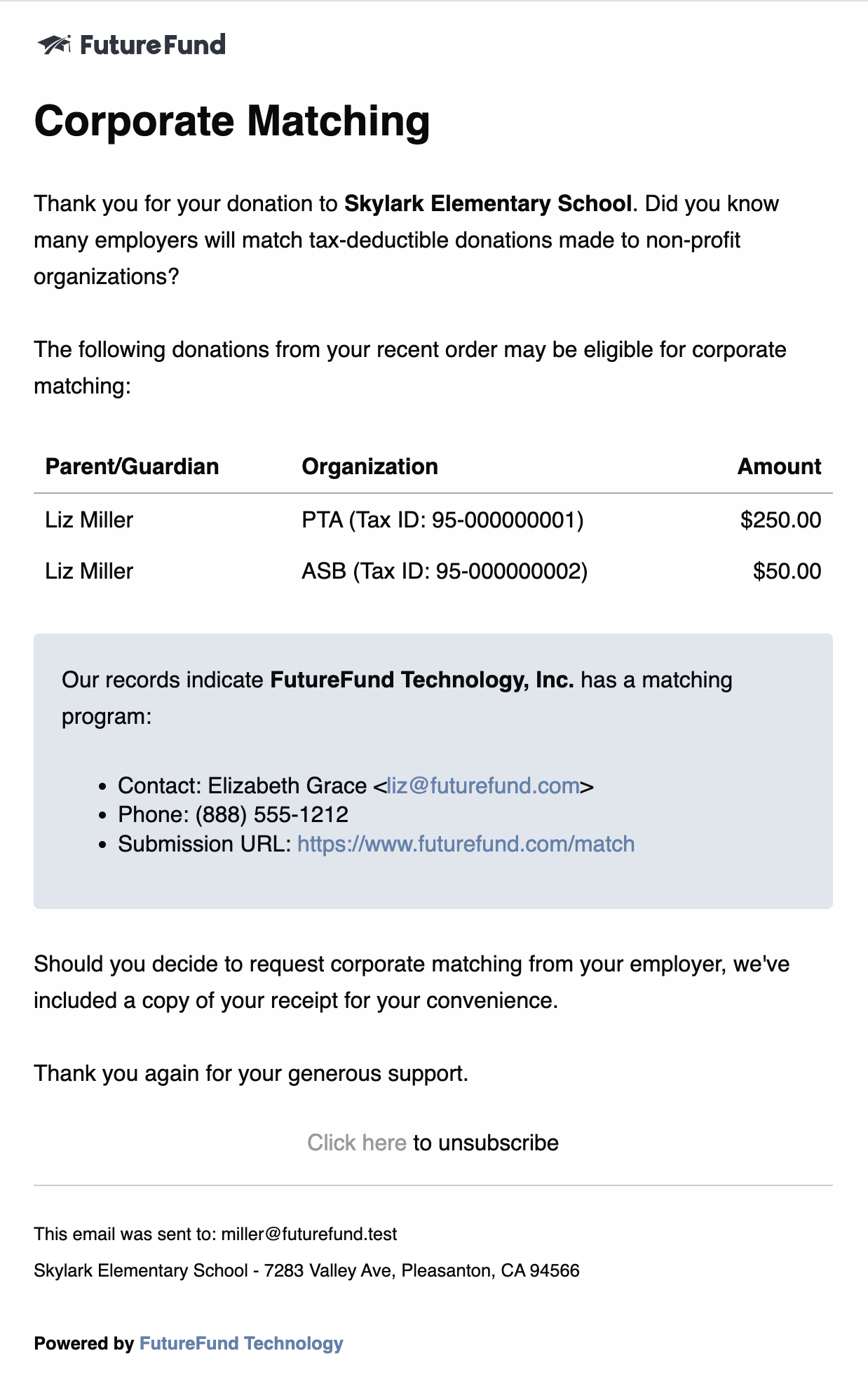
- One hour after the original order was placed and paid for, FutureFund will send an automated welcome email asking for the purchaser to participate in the corporate matching program. If an admin adds a match to an order, the email goes out right away.
- The welcome email includes a PDF copy of the donor’s order receipt. The donor can send it to their employer with their matching request.
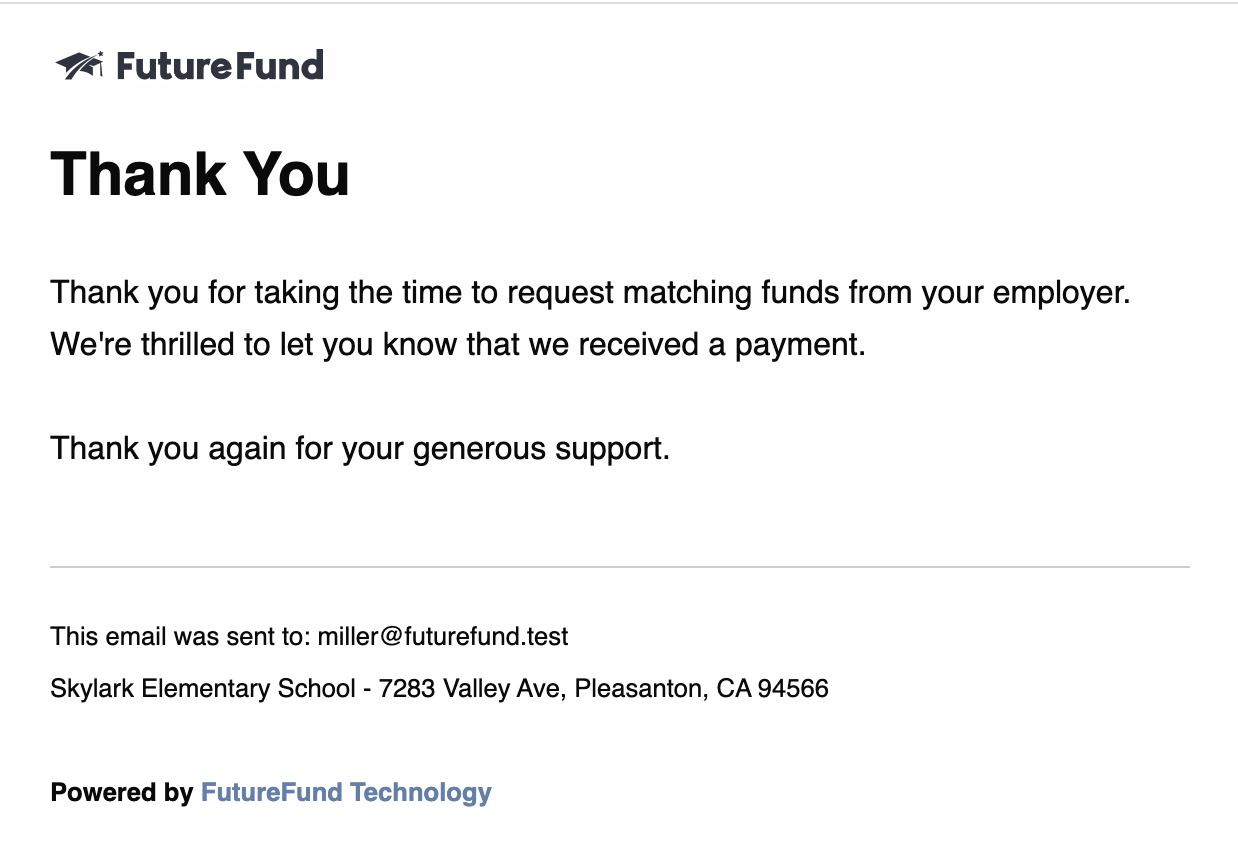
- In most cases, payments for corporate matching are sent from the employers directly to the schools. Once payment is received and an admin marks the request as Paid, the parent will receive a thank you email from the system. See Updating a Request’s Status below.
Program Details
- The school session must have the Corporate Matching feature enabled (see Enabling Corporate Matching below)
- An order is checked for corporate matching when it is paid in full. Orders paid before Corporate Matching was turned on are not added later. To include one of them, open the order and click Add Corporate Match (see Adding a Match to an Order below)
- The order must contain at least one Tax Deductible Donation (the donation must be 100% deductible, no goods or services can be exchanged for the donation)
- The entire order must be paid (installment plans must be paid in full for all organizations)
- On a First Step order, every eligible parent included in the order will receive the welcome email
- On a store order, only the purchaser is checked and receives the welcome email
- On a First Step order, the parent supplies their employer’s name during First Step
- If the employer is in our database, they must have a corporate matching program for the parent to receive the welcome email
- If the employer is not in our database, they are sent the welcome email
- First Step orders, store orders, and Pledge campaign donations are included in corporate matching
- Store orders placed with guest checkout are not included
- Received funds are tracked separately (not attributed to campaigns)
Where Donors Enter Their Employer
Store Orders
Store shoppers are not asked for an employer on the store page or at checkout. FutureFund uses the employer saved on the shopper’s FutureFund account.
When a signed-in shopper’s saved employer is in our database, a tax-deductible item shows “Your employer may support corporate matching on this item.” under the item’s name.
If a store shopper tells you about their employer’s program, add the match yourself. See Adding a Match to an Order below.
Pledge Campaign Donations
Pledge donors are asked for their employer right after they give. When Corporate Matching is turned on and the donor has no employer on file, the thank-you page shows a Corporate Matching box:
Does your employer offer corporate matching? If so, please enter your employer’s name below.
- The donor types their employer’s name in the Employer field.
- The donor clicks Submit.
This adds the match to their order. The welcome email goes out about an hour later.
Enabling Corporate Matching
To enable corporate matching:
- In the Admin, click Account Settings.
- Under Payments, click Online Store.
- Click Advanced settings to open more options.
- Check Enable corporate matching support.
- Click Save.
Adding a Match to an Order
If a parent tells you about their employer’s program after the fact, you can add a match yourself. Open a paid order and click Add Corporate Match. This button shows up only when corporate matching is turned on and you have Organizer or Administrator access.
Updating a Request’s Status
Every matching request starts out as Pending. FutureFund doesn’t know when a donor submits their request or when the employer pays, so you keep each request up to date yourself. Requests are updated one at a time.
- Open the order. You can find it under Orders & Payouts, or on the Corporate Matching Summary Report by clicking the employer’s name.
- In the Corporate Matching section, click View on the donor’s row.
- Click Edit.
- Choose a Status.
- If you chose Paid, enter the Amount Received from the employer.
- Click Save.
| Status | Use it when |
|---|---|
| Pending | The donor hasn’t submitted yet |
| Submitted | The donor sent their request to the employer |
| Paid | The employer’s payment arrived |
| Denied | The employer turned the request down |
When you save a request as Paid, the donor gets the thank you email automatically. The Amount Received shows in the Collected column of the Corporate Matching Summary Report.
The status also decides who gets a Corporate Matching email from Messaging: Payment pending reaches requests still marked Pending, and Payment received reaches requests marked Paid. See Sending Messages.
You need Organizer or Administrator access to change a status.
Resending the Welcome Email
If a donor can’t find their welcome email, you can send it again. It includes the same PDF copy of their order receipt.
- Open the order.
- In the Corporate Matching section, click View on the donor’s row.
- Click the Actions menu, then click Send Reminder Email.
- Confirm that you want to send it.
You need Organizer or Administrator access to send a reminder.
Reports
In Orders & Payouts > Reports, the Corporate Matching Summary Report provides a view into the collection efforts by employer. See Corporate Matching Summary for the columns and filters.
Exporting Data
If a site wants to run their own corporate matching program, we provide a CSV export of needed information:
- In the Admin, navigate to Orders & Payouts > Reports.
- Select Corporate Matching Summary Report.
- At the top of the report card, click Export Detail for one row per request, or Export Summary for one row per employer.
Email Samples
The following sample emails are sent to parents when the program is enabled.
Welcome Email
Thank You Email
Was this helpful?