Fulfillment
FutureFund allows tracking delivery of products sold.
Fulfillment Status
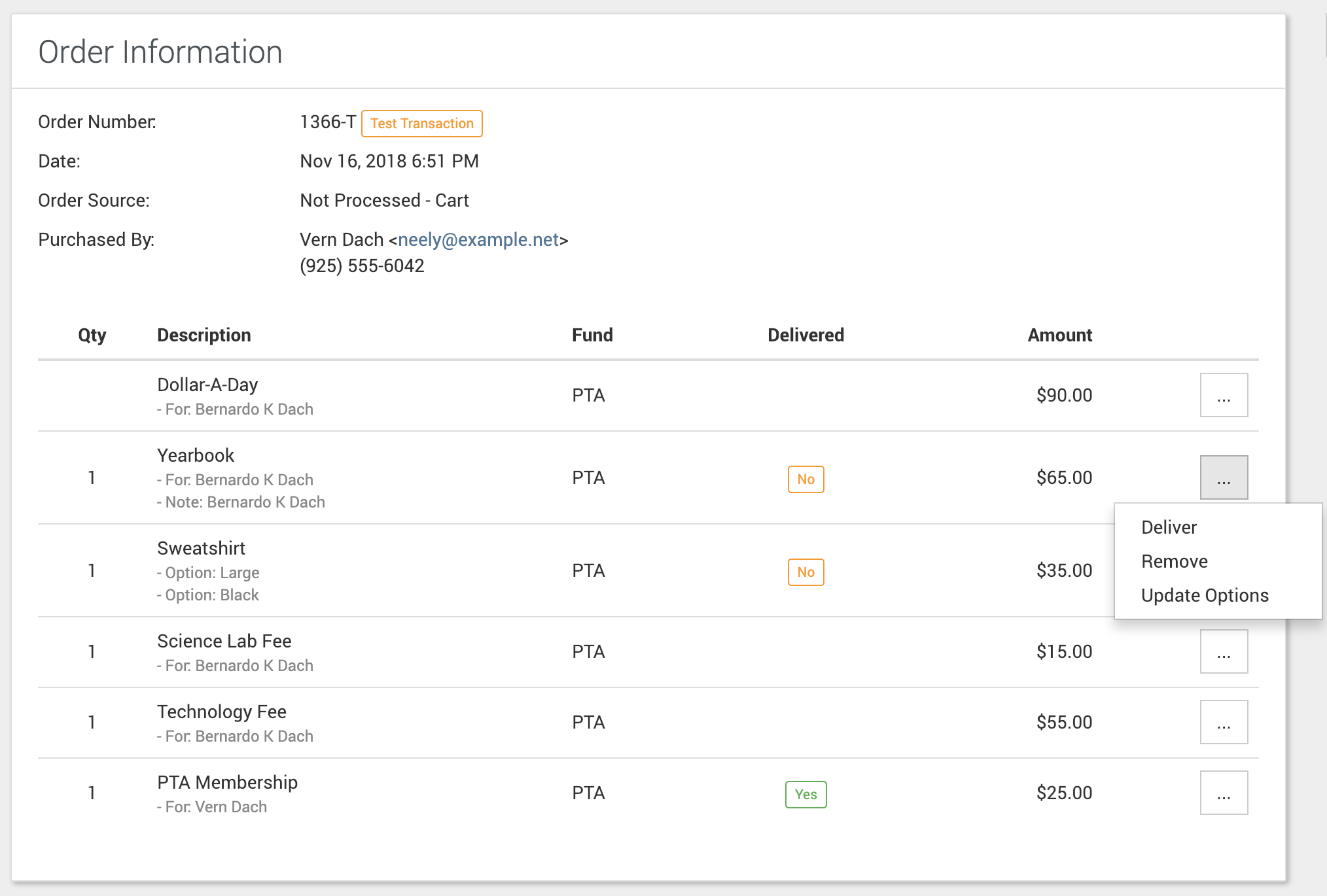
The Delivered column shows on each line item when you view an individual order, and on a campaign’s Fulfillment tab. The order list itself does not have a Delivered column. The column shows three values:
- Yes: The item is fulfilled.
- No: The item needs fulfillment.
- Blank: The item does not need fulfillment.
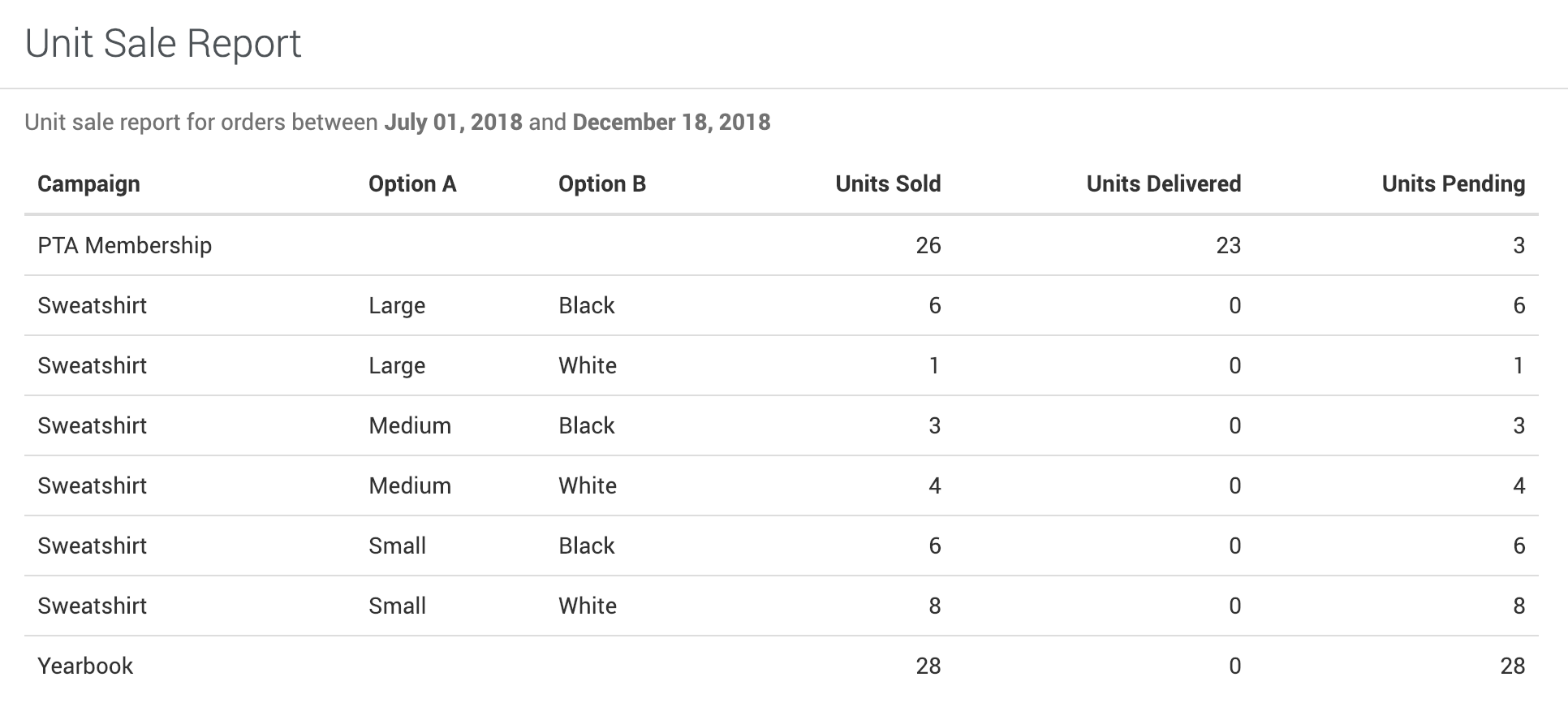
FutureFund also provides a report to view the items needing fulfillment. See the Unit Sale Report for more information.
Fulfilling Orders
Order Fulfillment
Items from Purchase campaigns can be fulfilled when viewing the order.
- Navigate to an Order in Orders & Payouts
- Click the View button next to the order
- Click the ⋮ menu on the item’s row
- Click Mark Delivered. To undo it, click Mark Returned.

Bulk Fulfillment
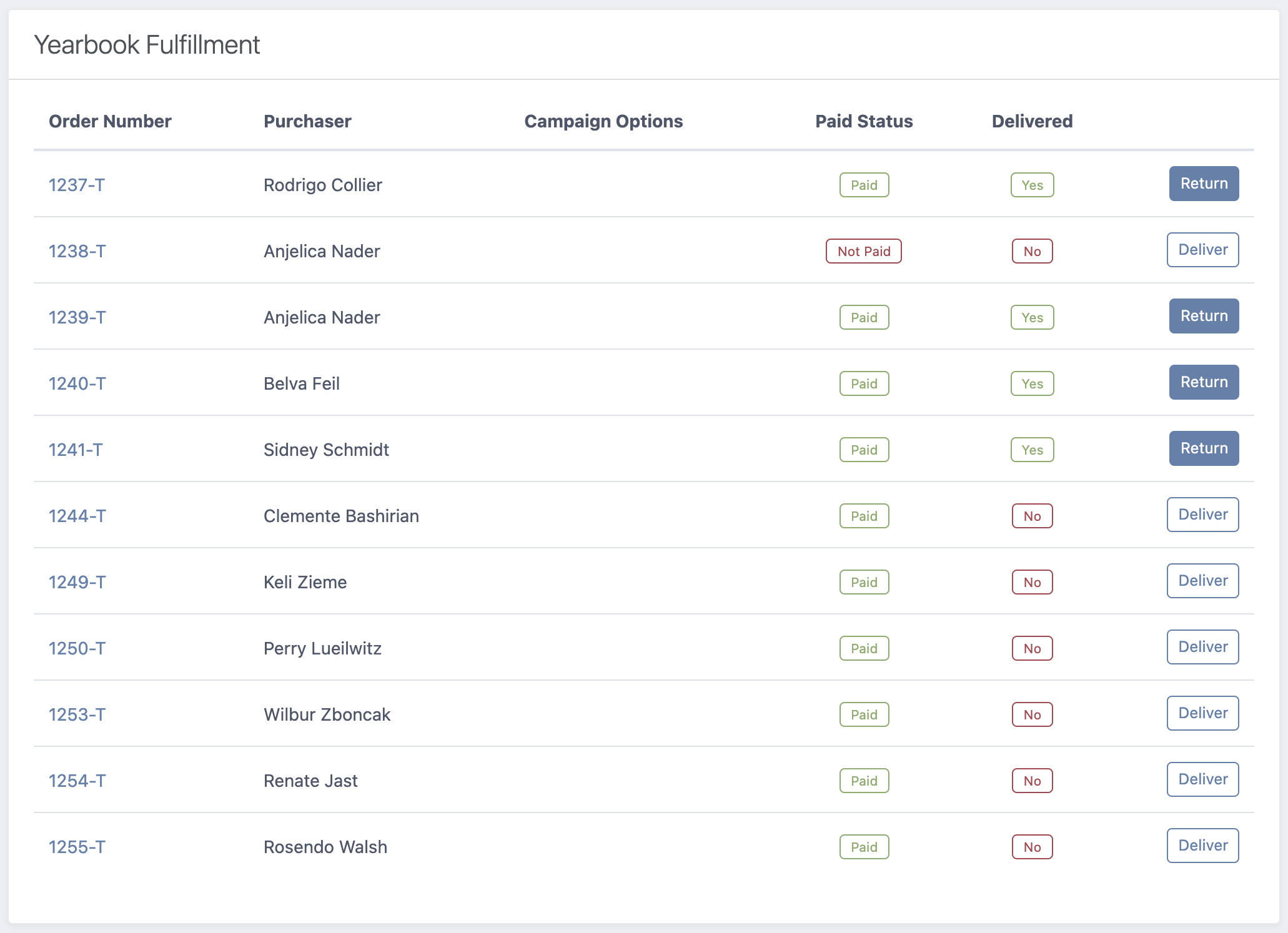
FutureFund supports bulk fulfillment for a single campaign.
- In the Admin, navigate to Campaigns > Products
- Click the View button next to the campaign
- Click the Fulfillment tab
- Toggle the fulfillment status by clicking the Deliver/Return button
Notes
- Fulfillment is limited to Purchase campaigns. The Fulfillment tab only appears on that type.
- Marking an item delivered or returned does not email the buyer, and it does not change or refund the payment. Return or Mark Returned simply undoes the delivery.
- Memberships are automatically marked as fulfilled when they are paid. There are no other options or features for membership campaigns.
- Unpaid orders (check/cash payments) can be marked delivered regardless of the payment status. It is your decision to deliver unpaid orders.
Was this helpful?