Member Pricing
Purchase campaigns support member pricing in addition to the regular, non-member pricing.
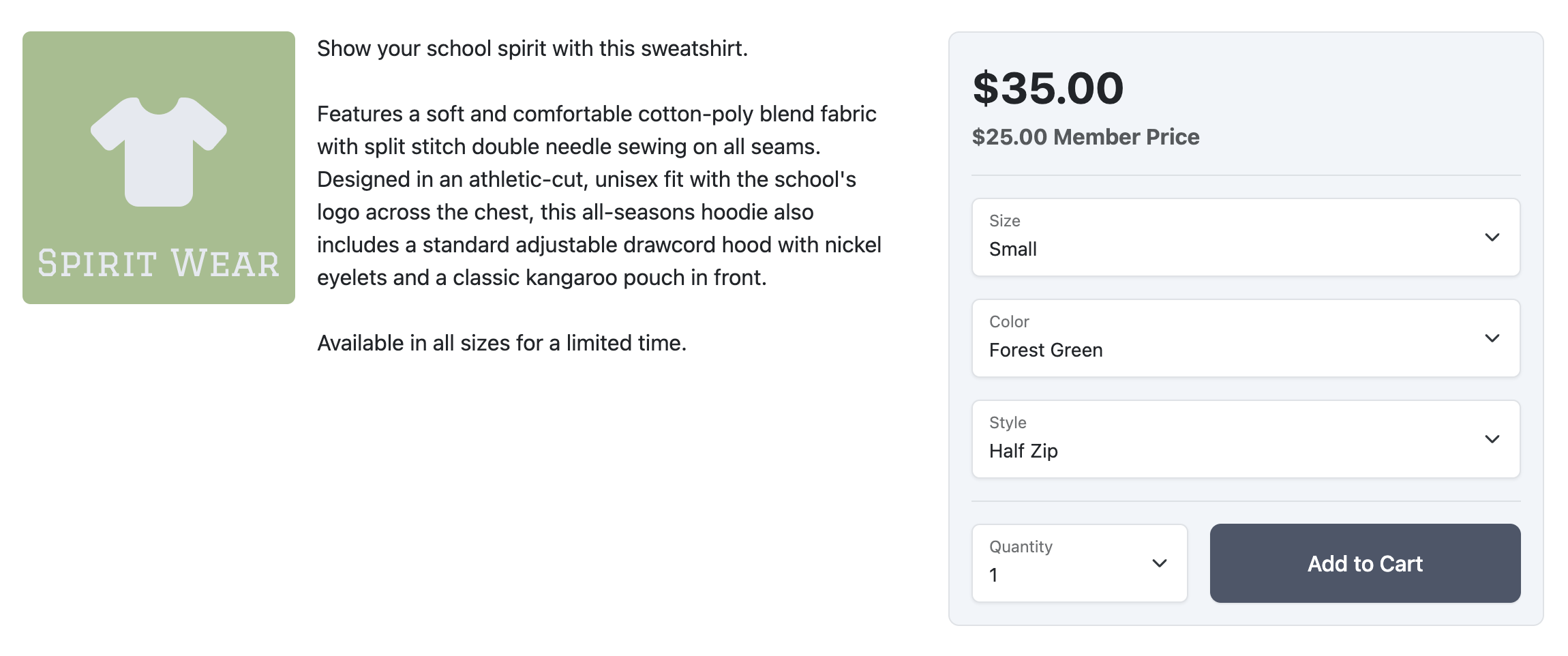
Purchase campaigns can carry a second, lower price for people who have bought a membership. Both prices are shown, and the right one is applied automatically at checkout.
Setting a Member Price
- In the Admin, navigate to Campaigns > Products.
- Click the View button next to the Purchase campaign.
- Click the Edit button and enter a Member Pricing amount alongside the regular price.
Member pricing is only available on Purchase campaigns.
Pricing Behavior
When a campaign has a member price:
- The regular and member price are displayed when viewing the campaign
- When the item is added to the cart, the cart will reflect the correct price
Eligibility
Eligibility for member pricing is based on the following:
- Members whose email address in the membership record for the current school session matches the user’s email when making a purchase
- Purchasers who are purchasing a membership along with an item with a member price
- Purchasers who purchased a campaign for someone else in the current school session
In all cases, the organization of the membership must match the organization of the campaign. For example, if a parent purchased a membership from the PTA, the member pricing would only apply to PTA products. In order to receive a discount on ASB items, the parent would need to purchase an ASB membership.
Notes
- Member pricing is supported in the store and First Step
- Eligibility is limited to the current school session
Was this helpful?