Tax Receipts
FutureFund can send tax receipts to purchasers with at least one tax deductible purchase in the past calendar year.
We adhere to the requirements specified in the IRS Publication 1771 - Charitable Contributions: Substantiation and Disclosure Requirements with the exception of the $250 threshold. We send for any amount.
Program Details
Before sending the email, please verify the organization’s Tax ID is accurate as emails can only be sent once per year.
- This feature is available in the month of January of each year. It covers the previous calendar year and all school sessions in the account.
- This feature is not automatic. An admin must initiate the send request. (See below)
- Orders placed during the previous calendar year are included.
- Only items from campaigns marked This donation is tax deductible are included. The receipt uses the campaign’s setting at the time you send. If you turn the setting on later, earlier purchases from that campaign are included. If you turn it off, they are left out.
- The amount shown is what was paid during that calendar year, less any refunds. Fully refunded items are not included.
- Installment payments that were made are included. Installments that were not paid are not included.
- Offline donations entered by an admin are not included.
- One email is sent to each purchaser (the person who checked out) for all organizations in the account. Organizations cannot be excluded.
Sending Tax Receipts
To send tax receipt emails:
- Log in to the Admin and go to Account Settings > Payments > Tax Receipts.
- Find the row for last year. Its status should read Ready to Send.
- Click the Send Tax Receipts button.
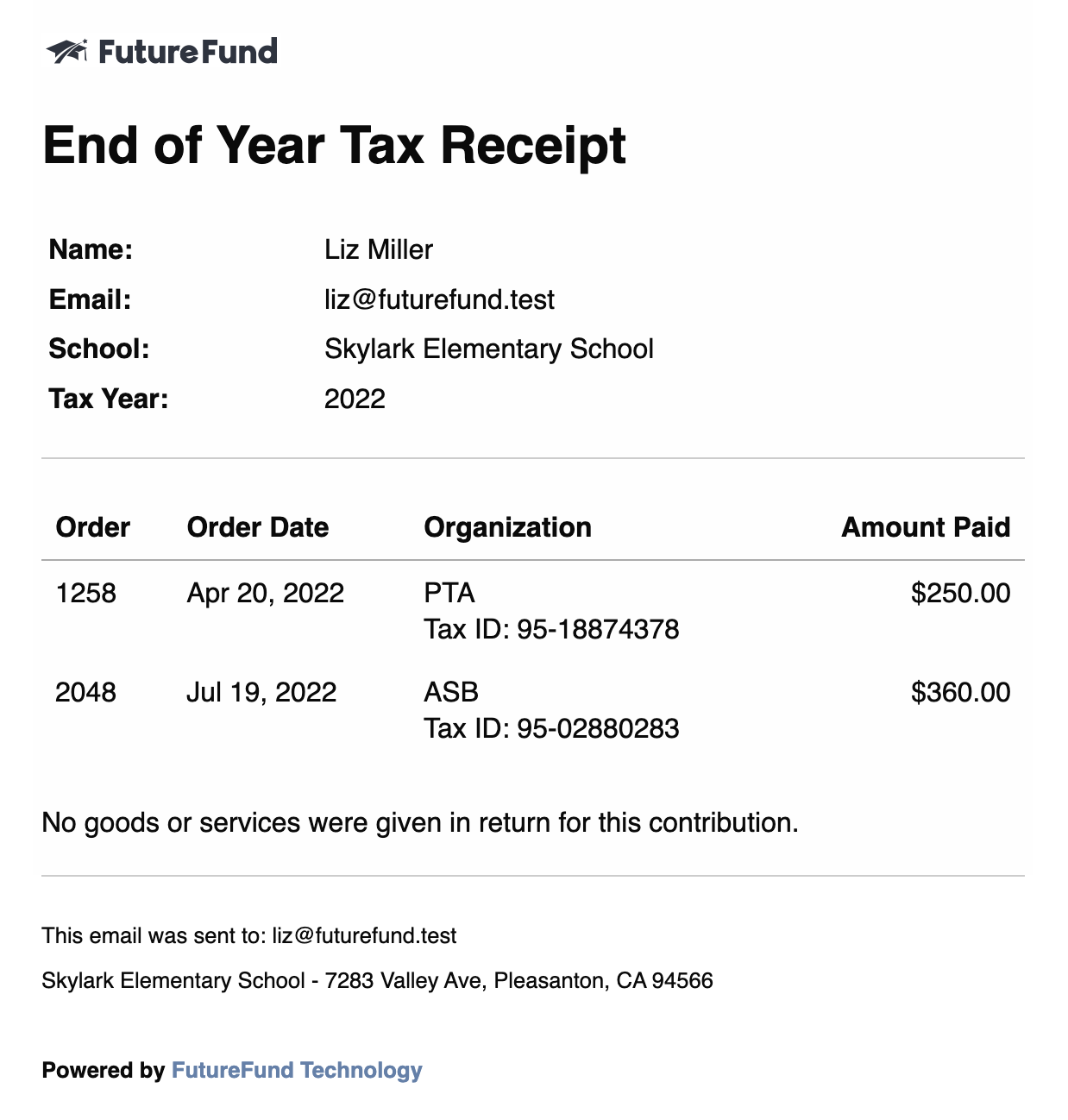
- A form will be displayed allowing customization of the tax message which appears at the end of the email. See Sample Email
- Click Save to send the emails.
The Send Tax Receipts button only appears in January, and only for admins who can make changes to the account.
- If the status reads Not Ready - Wait until January, come back in January.
- If the status reads Window Expired - Contact Support, January has passed. Contact support for help.
Sample Email
Was this helpful?