Messaging Setup
Messaging settings are found in the Admin under Account Settings > Messaging. These settings belong to the school and apply to all school sessions.
Sender Profiles
Sender Profiles allow customization of reply-to addresses and branding in emails.
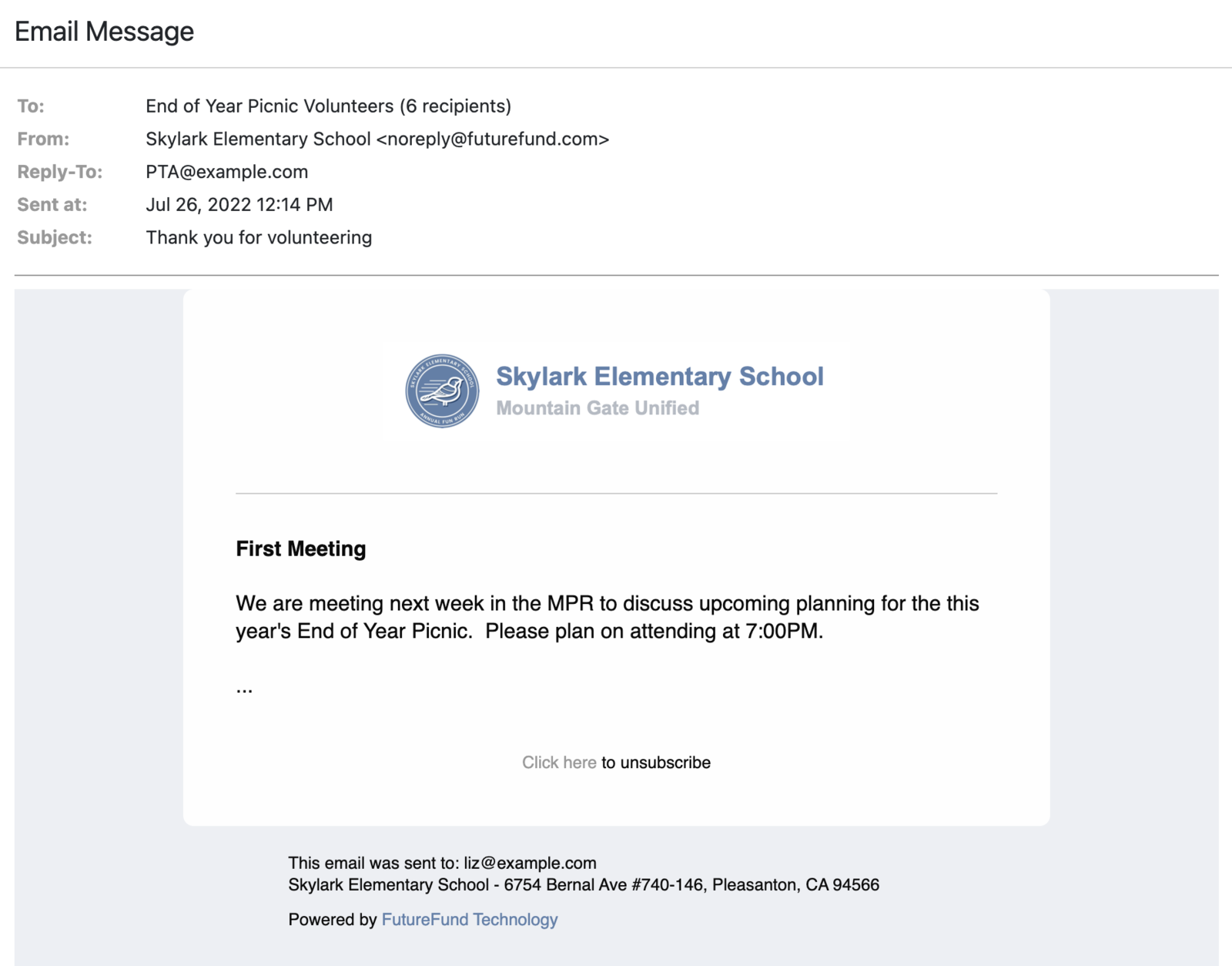
Specifically, sender profiles support:
- Specifying the
reply-toemail address enabling parents to reply to emails from FutureFund. Without customization, the default address is not monitored and will be returned to the parent as undeliverable. - Specifying of the name in the
Fromfield of the email. Without customization, this defaults to the name of the school. For email deliverability, the from address will always benoreply@futurefund.com. - Branding of emails including colors and optional use of a logo.
Branding
Sender profiles allow customizing the following elements:
- Name (used in the From field and in the header)
- Logo (optional, used in the header with the name or standalone)
- Color (used to color the name)
The logo should be at least 150 pixels high and no more than 1,000 pixels wide.
Example: This example shows the header of the email with the name and color set.

Example: This example shows the header of the email with the name, color, and logo set. This profile has the option to show the name with logo enabled.

Example: This example shows the header of the email with the name, color, and logo set. This profile has the option to show the name with logo disabled. Note: the entire header is an image.

Default Sender Profile
FutureFund sends transactional emails (e.g., order confirmation and directory invitation emails) from a
noreply@futurefund.com email address and with a FutureFund logo branding. Schools have the option to change these
defaults by selecting a default sender profile.
To customize the default sender profile:
- In the Admin, navigate to Account Settings > Messaging
- Select the desired Default Sender Profile from the drop down
- Click the Save button
Notes:
- You must have the
messagingpermission to access this feature. - This feature changes the
Reply-toaddress and name in theFromfield. It does not change theFromaddress. - This is an account-level setting; emails from all school sessions will be affected.
Text Message Prefix
Every text message you send starts with a short prefix so parents know who the message is from before they read it. The prefix defaults to your FutureFund subdomain and is typically set to your school or organization name.
For example, with a prefix of LINCOLN ES, a message reads:
LINCOLN ES: Fun Run starts at 9:00 am on Friday. Cheer on your student!
Reply STOP to opt out
To set the text message prefix:
- In the Admin, navigate to Account Settings > Messaging
- Enter the prefix in the Text message prefix field
- Click the Save button
Notes:
- The prefix is limited to 12 characters and is displayed in capital letters.
- The prefix and the “Reply STOP to opt out” line are added automatically and do not count against the 250 character limit of your message.
- This is an account-level setting; text messages from all school sessions will use it.
See Sending Messages for audiences, scheduling, and messaging rules.
Was this helpful?