Ticketing
Getting Started
FutureFund supports ticket campaigns for just about any event:
- Athletics: Team and Club Sports
- Performing Arts: Theatre, Choir, Band
- Dances: School Dances, Homecoming, Prom
- Graduation: Graduation and Promotion
- Events: Any other events with ticketed entry
A ticket campaign contains a number of events. Each event has a title, location, date and time. The campaign also has a set of ticket types (Adult, Student, Senior, and so on), each with its own price, that apply across your events.
For example, Skylark High School is selling tickets for their upcoming football season. They create one campaign named “2024 Football Season,” add an event for each home game, and add three ticket types:
- Adult ($6.00)
- Student ($5.00)
- Senior 65+ ($5.00)
When a purchase is made, the buyer picks the event and the ticket type. After the purchase, the tickets are emailed to the purchaser and can be installed in the digital wallet on their phone.
Building a Ticket Campaign
- In the Admin, navigate to Campaigns > Ticketing.
- Click the Build Campaign button.
- Choose Ticket.
- Pick the organization the sales should go to.
- Fill in the campaign details, plus the title and date of your first event.
Every ticket campaign needs at least one event, which is why the builder asks for it up front. Once the campaign exists, you add the rest of your events, locations, capacity, and ticket types from the Events tab.
An open ticket campaign has these tabs: Overview, Events, Tickets, Redemption, Orders, and Share.
Events and Ticket Types
Both are managed on the campaign’s Events tab.
Ticket Events
Click Add Event to add an event. Each event has:
| Field | Notes |
|---|---|
| Title | The name of the event |
| Location | Address lookup with autocomplete |
| Date and time | When the event takes place |
| Capacity | The total number of tickets you can sell for this event. Leave blank for unlimited. |
| Remaining | Shown beside Capacity. It counts down as tickets sell, so you can see at a glance how many seats are left. |
The events table also shows Capacity and Remaining for every event, plus how many tickets are left of each ticket type that has a limit.
When you duplicate a campaign for next year, each event starts over at full capacity. Last year’s leftover count doesn’t carry over.
Ticket Types
Click Add Ticket Type to add a type. Ticket types are shared across all the events in the campaign.
| Field | Notes |
|---|---|
| Name | Example: General Admission, Adult, Student, Senior |
| Code | A 1-2 character code used to identify the ticket type during scanning. Assigned automatically, editable after the type is saved. |
| Amount | The price for this ticket type |
| Inventory | Optional. The most tickets of this type you’ll sell at each event. Leave blank for unlimited. |
| Restrict pricing to members | Only members can buy this ticket type at this price |
For example, if you set Adult to an Inventory of 50, you can sell up to 50 Adult tickets for every game. Each game has its own count.
What Buyers See
In the online store and during First Step, a ticket type with none left shows Sold Out. The quantity a buyer can choose stops at the number that’s left.
Season Passes
Season passes provide a convenient way to offer purchasers a single purchase for all events in a ticket campaign, often at a discounted price.
- On the Events tab, click the Add Season Pass button.
- Choose the label you want to use: Season Pass, All-Access Pass, or Multi-Day Pass.
- Check the box to enable it for each event that should be included.
- Set the season pass price on each ticket type in the Ticket Types section.
Important notes:
- A season pass takes a seat at every event it includes. That means a game can’t be oversold through season passes.
- If an upcoming event is sold out, the season pass is sold out too.
- A season pass also counts toward a ticket type’s Inventory limit at each event.
- If a season pass is refunded in full or removed from an order, its seats go back on sale.
- Purchasers will receive a separate ticket for each event once their order is paid.
Ticket Selling
Tickets are sold as a regular campaign in FutureFund. All the great features around campaigns are available for ticket campaigns. Tickets are sold in the online store.
Collecting Guest Details with a Form
You can ask ticket buyers for details about their guests, such as a name or a meal choice. Click Edit on the campaign, open the Forms tab, and choose Basic Forms or Custom Forms.
When a ticket campaign uses a form, buyers add their tickets one step at a time:
- The buyer clicks Get Tickets and can choose 1 of each ticket type.
- After they click Add to Cart, your form opens. It is answered once for the tickets in that step.
- To add another ticket, they click Get Tickets again. The form is asked again for the new ticket.
Without a form, buyers can choose up to 16 of each ticket type at once, as long as the event has that many tickets left.
If one family is likely to buy several tickets, turn on Reuse answers within the same order in the form’s settings under Forms & Waivers. The questions then come back filled in with their last answers, and they can change anything before adding the ticket to their cart.
Paying for Tickets
Ticket orders are paid by card at checkout. Cash or check is never offered for an order with tickets in it, even when Allow offline payments is turned on.
If a family wants to pay by check, an admin can build the order for them:
- In the Admin, navigate to Orders & Payouts and click Build Order. Enter the purchaser’s name and email.
- Click Add Product to Cart and pick the ticket campaign.
- Choose the event and the ticket type. Each line is one ticket, so there is no quantity box. Add one line for each ticket.
- Click Finalize Cart.
- When the check arrives, click Mark Paid on the order’s payment.
The tickets are created and emailed to the purchaser once the payment is marked paid. See Offline Payments for how to record a check or cash payment.
Giving Free Tickets
To give tickets away, for example to volunteers or special guests, build a $0 order for them:
- In the Admin, navigate to Orders & Payouts and click Build Order. Enter the guest’s name and email.
- Click Add Product to Cart and pick the ticket campaign.
- Choose the event and the ticket type.
- Change Amount to 0.00. It starts out filled in with a ticket price, so always check it.
- Click Save. Each line is one ticket, so repeat steps 2 to 5 for each ticket.
- Click Finalize Cart, then click Finalize to confirm.
A $0 ticket counts as paid right away. The tickets are created and emailed to the guest as soon as you finalize. There’s nothing to mark paid, and there are no fees for free tickets.
To let guests get free tickets on their own in the online store, create a discount code instead. Set Discount Type to Percent off and Percent Off to 100. Under Applies To, choose Only selected campaigns and check your ticket campaign. Set Max Uses if you want to limit how many orders can use it. When a guest applies the code, checkout says “No payment is needed for this order.” They click Complete Order, and their tickets are emailed to them.
Platform Fees
Ticket sales have a different pricing structure than other campaigns. Ticket sales are charged a fee of $1 for each ticket up to $10. An additional $0.25 is charged for each $5 increment thereafter. For example:
- Tickets $1.00 - $10.00: Fee $1.00
- Tickets $10.01 - $15.00: Fee $1.25
- Tickets $15.01 - $20.00: Fee $1.50
- etc…
There are no fees for free tickets.
Ticket Distribution
After a purchase is made, the purchaser receives an email titled “Your Tickets are Ready.” For each ticket, it lists the Event, Location, Section, and Ticket ID. The QR codes are not in the email itself. Instead, the email has a View Mobile Tickets button.
View Mobile Tickets opens a page with each ticket’s QR code. From there, the purchaser can add their tickets to Apple Wallet or Google Wallet.
The following can be used for admission to the event:
- Apple and Google wallet tickets
- The QR codes on the mobile tickets page
- Printed QR codes
The mobile tickets page opens without signing in. Anyone who has the email can see every ticket on that order, so forwarding the email shares all of those tickets.
Additionally, users can access their tickets in their account by logging into FutureFund.
Viewing Tickets Sold
The Tickets tab lists every ticket sold, with the purchaser, event, ticket type, and whether it has been redeemed. You can filter by event or ticket type, search by ticket holder, and click Export to download the list as a CSV.
Ticket Scanning/Redemption
There are a number of ways your organization can scan or redeem tickets at the gate. Tickets are redeemed by scanning them in Turnstile or by an admin on the Tickets tab. Families can’t redeem their own tickets.
FutureFund Turnstile
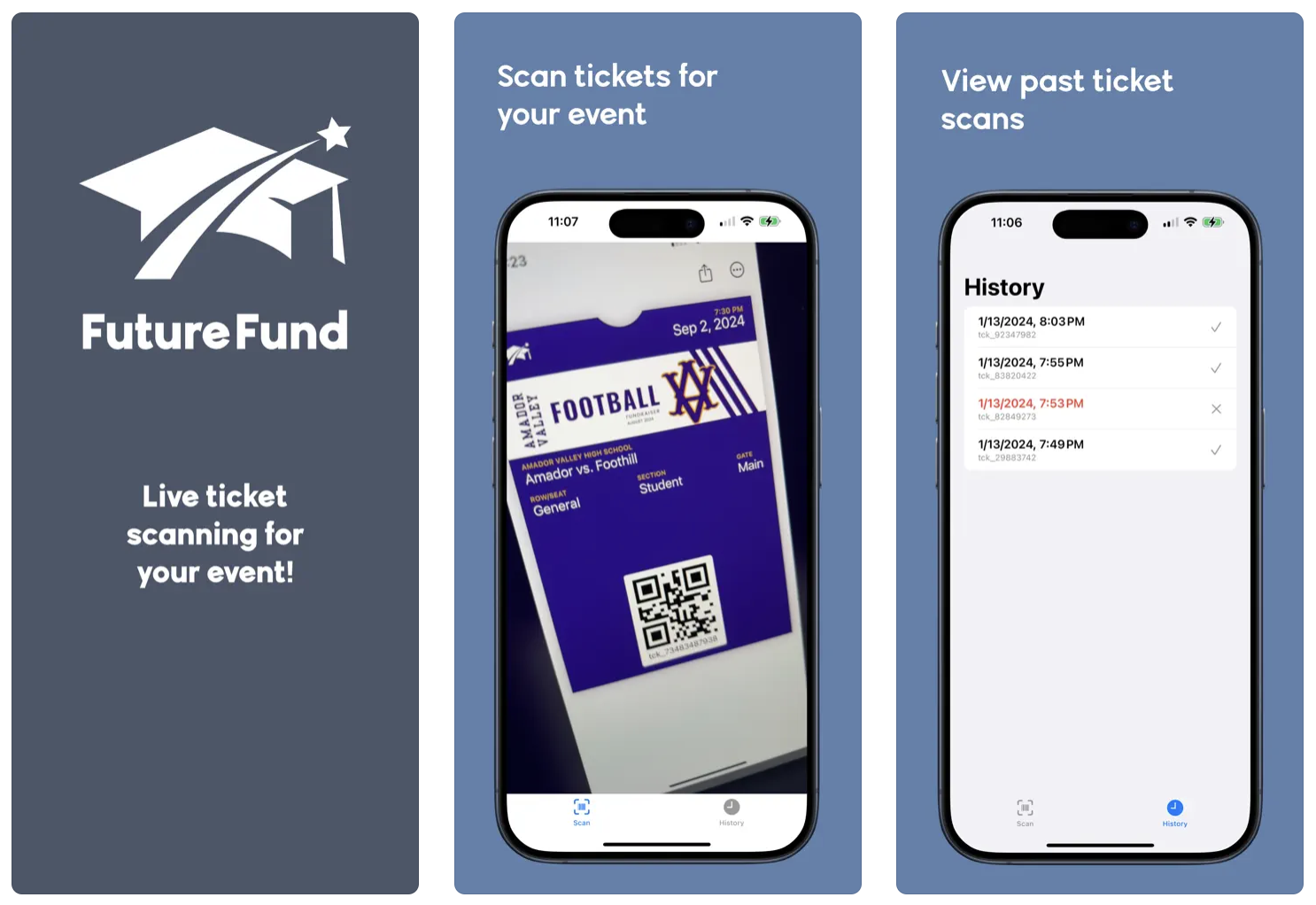
The easiest way to redeem tickets at the gate is to use our app, FutureFund Turnstile. Turnstile allows your volunteers to quickly scan QR Codes as your attendees enter your venue. Install the app and start scanning, it’s that easy. No user accounts needed.
The campaign’s Redemption tab has everything you need to get volunteers set up, including the download links.
Manual Redemption
An admin can manually redeem tickets in the Admin:
- In the Admin, navigate to Campaigns > Ticketing.
- Click the View button next to the campaign.
- Click the Tickets tab.
- Find the ticket and click the Redeem button.
If a ticket is redeemed by mistake, click Restore on that row to make it usable again.
Was this helpful?