Orders
Searching
Orders can quickly be found using the search box on the orders page (Admin > Orders & Payouts). The order search supports the following:
| Search Term | Type | Example |
|---|---|---|
| Order Number | Exact | 1001 |
| Parent Name | Fuzzy | John Smith John Smith |
| Purchaser Name | Fuzzy | John Smith John Smith |
| Fuzzy | jsmith@example.com | |
| Stripe Transaction Reference | Exact | ch_928FtrsvWXlH07 |
| Last Four of Credit Card | Exact | 4242 |
Exporting
The Export button on this page downloads a CSV of every order across your account. To download just one campaign’s orders instead, with only the columns you want, use Campaign Export. Open it from a campaign’s Overview page, or from the Export button on that campaign’s own Orders tab.
Building Orders
While we recommend parents place the orders during First Step or in the online store, there are times when an administration will need to manually create an order. This is done by clicking the Build Order button on the orders page.
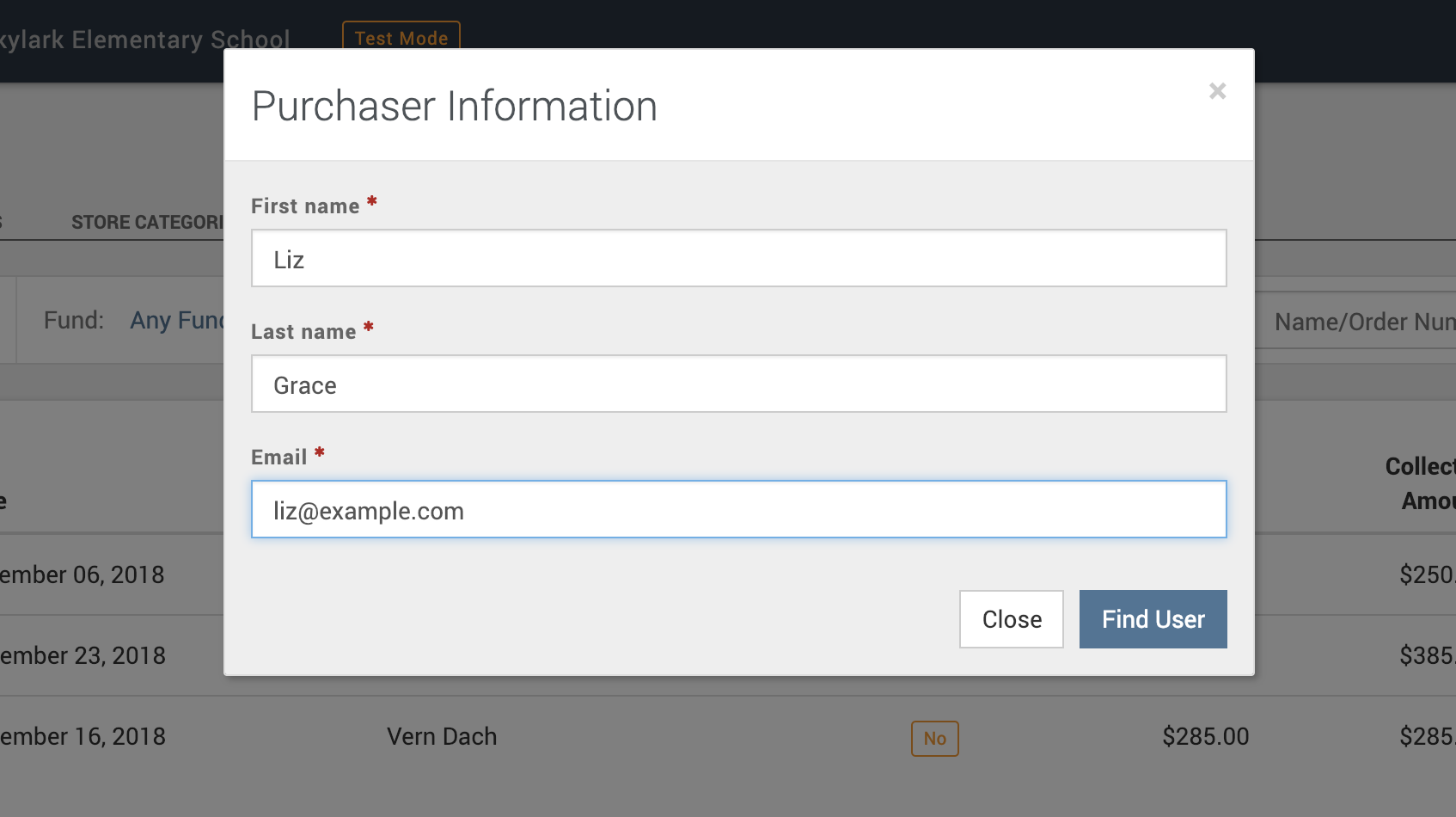
- Enter the parent’s information to create a cart. (Tip: For purchases to existing parents, this step can be skipped by clicking the Build Order link in the right sidebar when viewing an existing order or the parent’s record in the First Step section.)
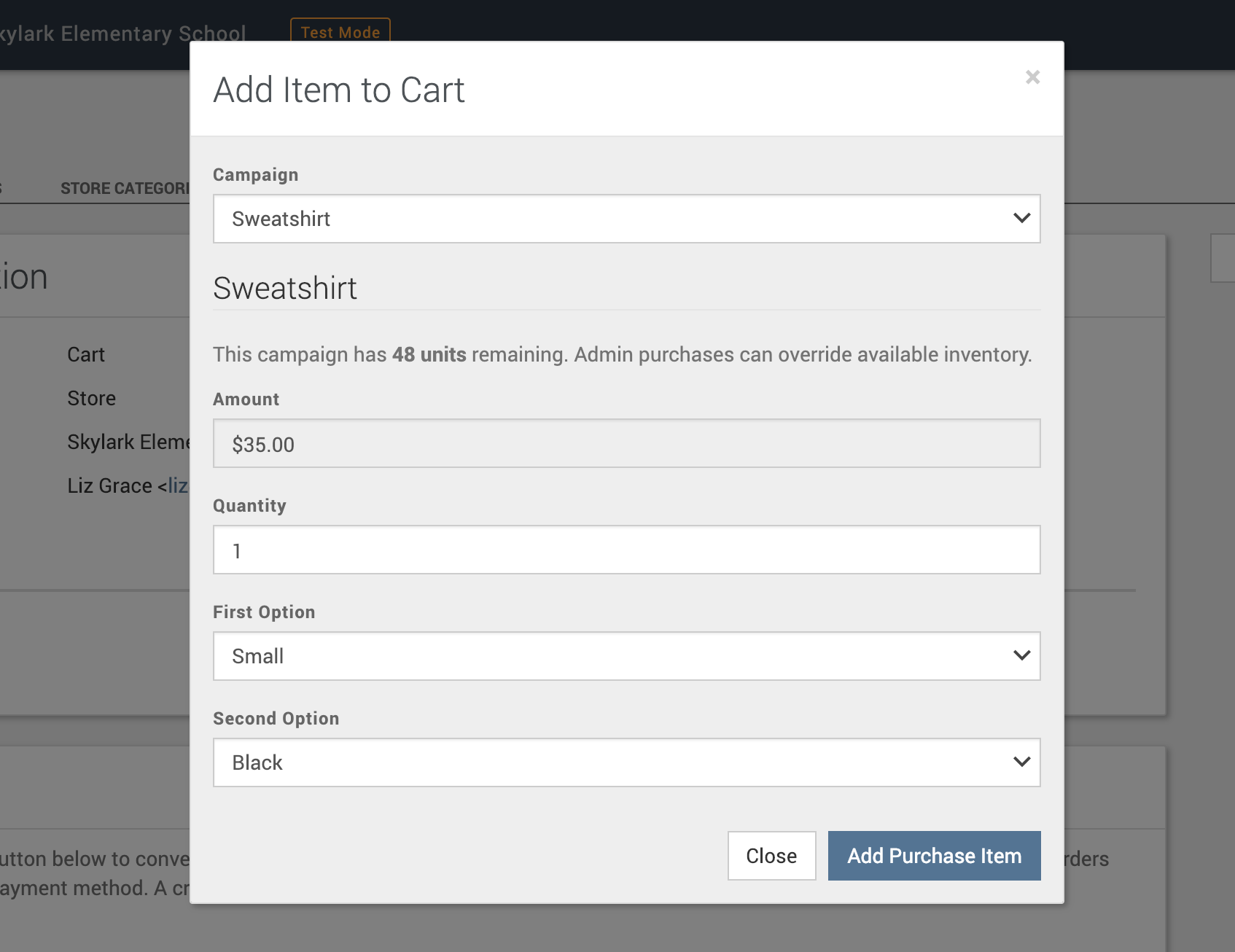
- Add products to the cart by clicking the Add Product to Cart button and completing the form.
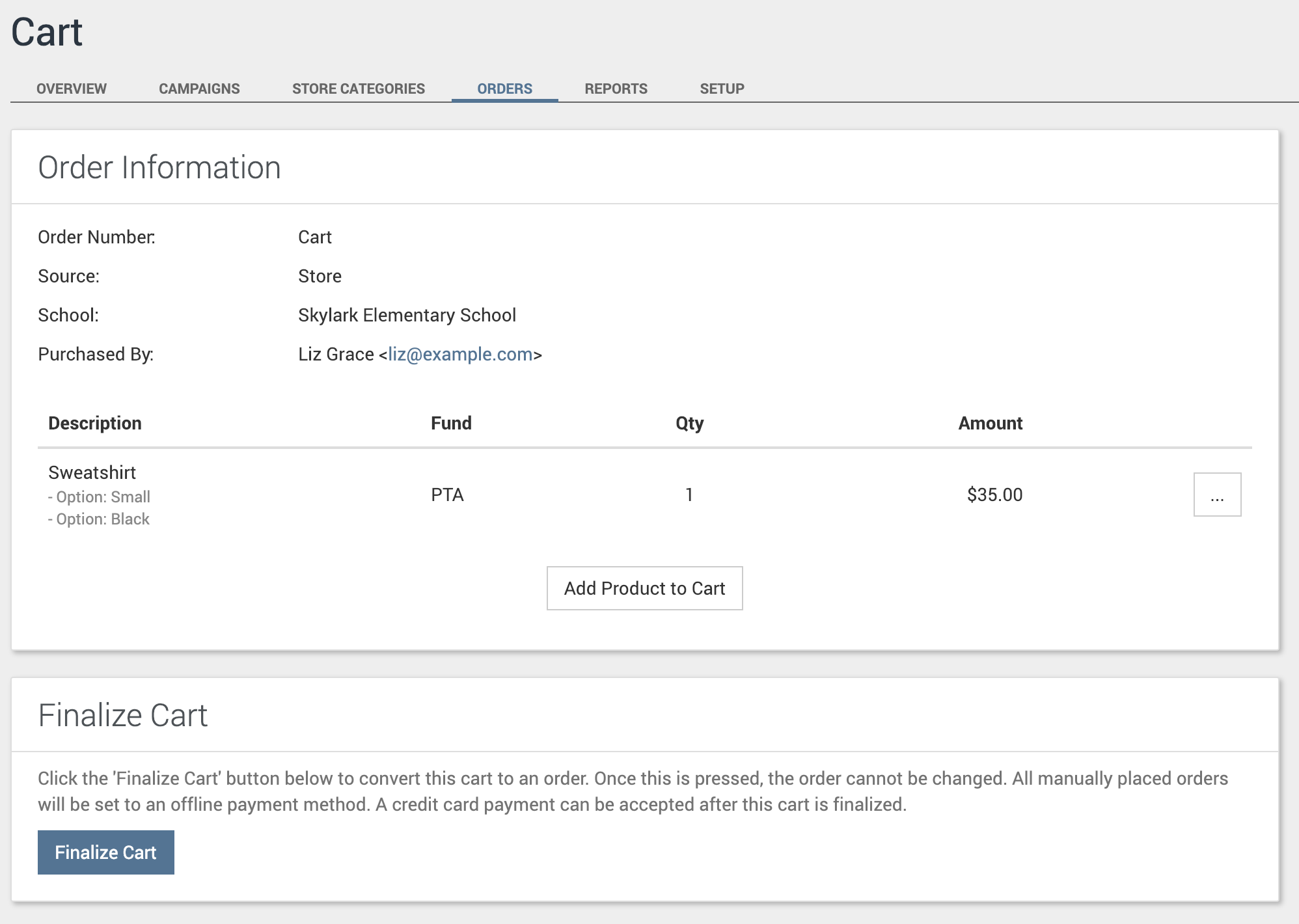
- Continue the previous step until the cart is complete. Click Finalize Cart to convert the cart to an order, then click Finalize to confirm. Once you finalize, the order can’t be changed.
- When the family pays, mark the payment as paid:
- On the order, find the payment under Payment Information and click View.
- Click Mark Paid.
- If they paid by check, enter it in Check number. To email the family a payment receipt, check Email receipt.
- Click Save.
When you finalize, the parent receives an email receipt for the order. That receipt doesn’t mean the order is paid. The payment shows as Pay at School, and the order shows a balance owed until you mark it paid. While it’s unpaid, the parent can get past due reminders starting two weeks after the order. See Past Due Orders.
After you mark it paid, the payment method shows “Check #” followed by the check number, or “Paid at School” if you left Check number blank. The family gets a payment receipt only if you checked Email receipt.
Pledge campaigns aren’t listed in Build Order. To record a cash or check donation for a pledge participant, use Offline Donations instead. See Pledge Campaign.
PDF Receipt
You can download a receipt for an order as a PDF, ready to print or email.
- In the Admin, navigate to Orders & Payouts.
- Find the order and click the View button.
- Click Actions > PDF Receipt. The receipt opens in a new tab.
The PDF covers the whole order. It lists every item on the order. For tax-deductible items, it also lists each organization’s Tax ID and tax-deductible amount. If the order isn’t paid in full, the PDF is titled “Invoice” instead of “Receipt”.
PDF Receipt shows only when both of these are true:
- You have Organizer or Administrator access.
- Your access covers every organization with items on that order. This is checked order by order. See When You Can Only See Some Items.
Families can print their own receipt too. They sign in, open Order History, open the order, and click Print.
If corporate matching is turned on, the welcome email sent to the donor includes this receipt. To send it again, see Resending the Welcome Email.
Name on the Receipt
The receipt shows Purchased By: with the purchaser’s name and email. For a First Step registration order, it shows Parent/Guardian: with each parent’s name and email instead.
When a family was signed in, or you built the order with Build Order, the name comes from that person’s FutureFund account. If you use Build Order with an email that already has a FutureFund account, the order goes to that person, and the name you typed isn’t used. For a guest checkout order, it’s the name entered at checkout.
If a family needs the receipt in a different name:
- Families who were signed in when they ordered can change their name in My Account at accounts.futurefund.com. Then they open Order History, open the order, and click Print. The new name shows on every receipt for their account.
- First Step orders use the parent names from the registration. To correct one, go to First Step > Students, open the student, click View next to the parent, then click Edit.
- Guest checkout orders don’t appear in Order History, so the family can’t reprint them there.
You can’t change the purchaser on an existing order in the Admin. If an order needs a different purchaser, contact FutureFund Support.
Issuing Refunds
Refunds should be issued from the Admin in FutureFund. This allows for accurate accounting, audit trails, and parent notifications.
Refunding an Order
- In the Admin, navigate to Orders & Payouts.
- Find the order and click the View button.
- Open the refund form:
- If the order was paid with one online payment, click the Refund button at the top of the order page, just left of the Actions menu.
- Otherwise, find the payment in the Payment Information or Installments section and click its View button. Then click Refund on the Transaction Detail page.
- Complete the form and click Refund.
Refunding a Single Item
- Open the order.
- In Order Details, click the ⋮ menu on the item’s row.
- Click Refund Item. The refund form opens with just that item.
When You Can Only See Some Items
If your access covers only some of the organizations on an order, the order page shows “You do not have permission to view all items in this order.” The Refund button and the Actions menu are not shown. Use Refund Item on each of your items instead.
Because the Actions menu is hidden, PDF Receipt isn’t available on that order either. Someone whose access covers every organization on the order can download it. The family can also print it from Order History.
The Refund Form
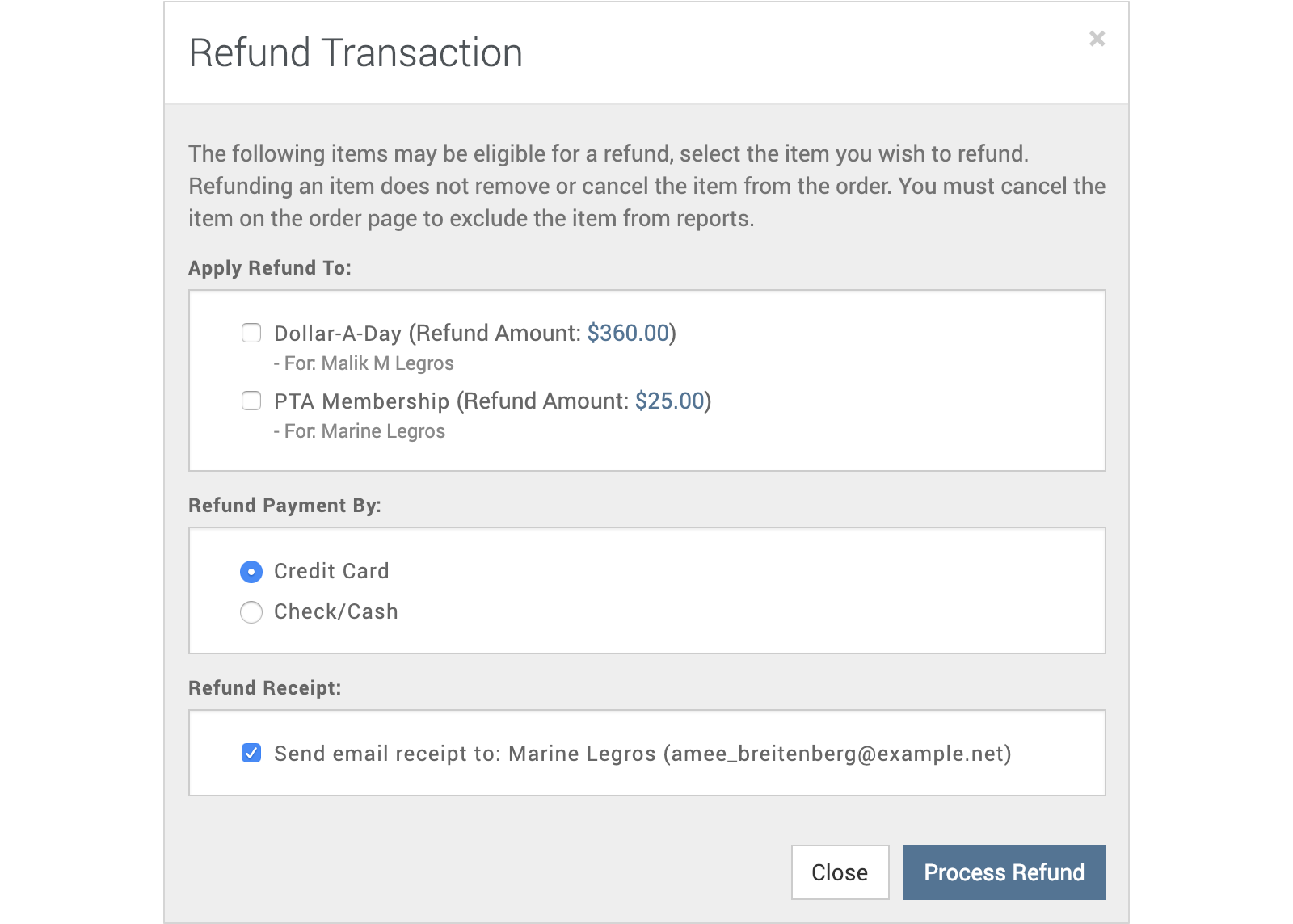
The refund form has the following options:
- To refund an item in full, check the box next to it.
- To refund part of an item, click the dollar amount next to Refund Amount and enter the amount you want to refund. The item is checked for you.
- Platform fees are listed separately as Platform Fee for followed by the campaign name. Check one to give the family that fee back too. The fee comes out of your organization’s balance.
- The refund always goes back the way the order was paid. An online payment is refunded to the original payment method. A check or cash refund is recorded in FutureFund, and you return the money to the family yourself.
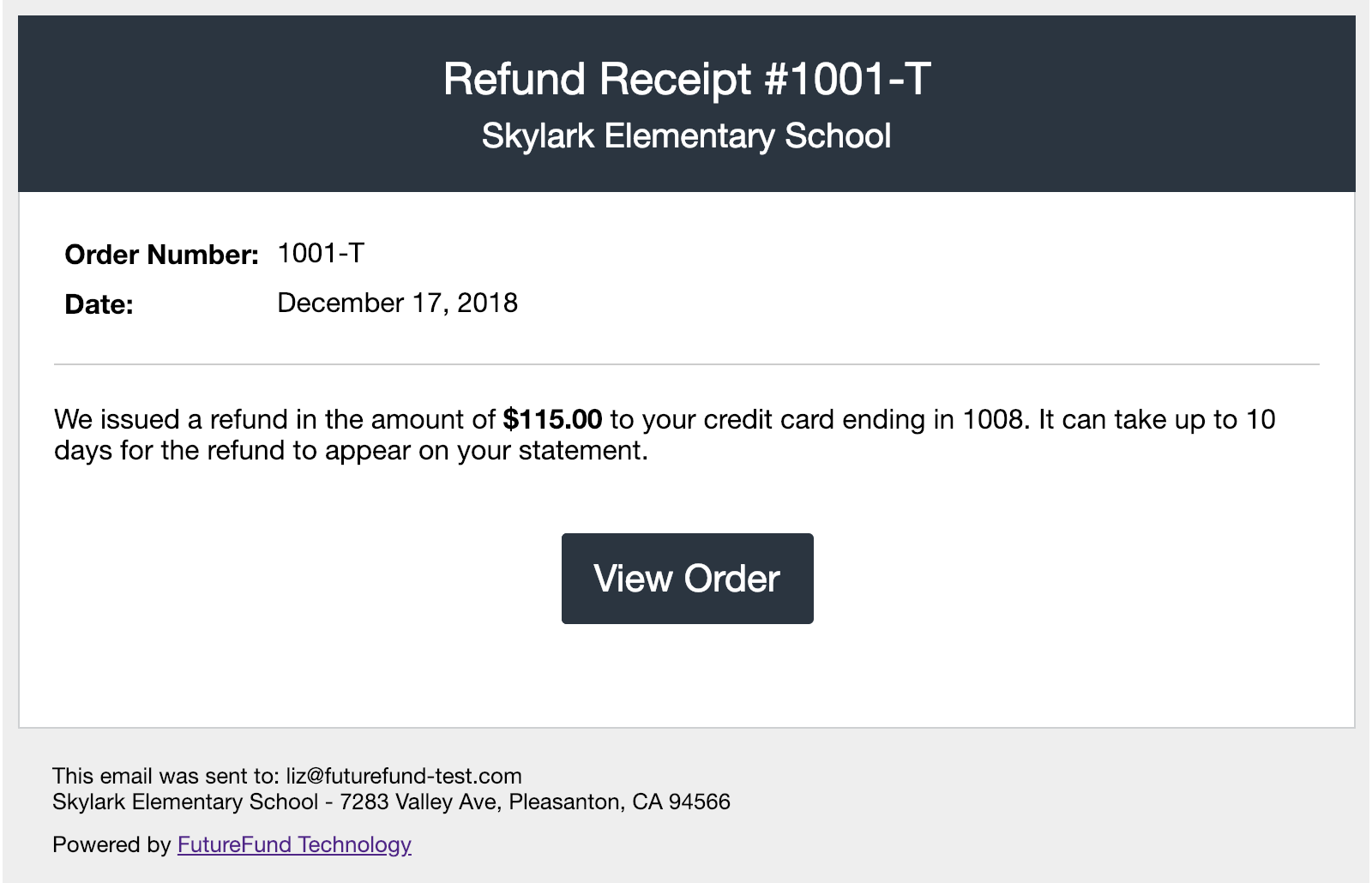
- The parent receives a refund receipt by email when Email receipt to: is checked. It shows the purchaser’s name and email, and it is checked by default.
After a Refund
- Refunding everything still owed on an item removes it from the order. A partial refund leaves the item on the order.
- A refund does not add the item back to your inventory.
- For an online payment, the family is refunded right away. FutureFund then takes the refunded amount back from your organization’s FutureFund balance automatically. If the balance is too low, the amount is taken from new sales as they come in. It is never taken from your bank account.
Voiding an Order
Void an order when it was placed by mistake and nothing has been paid on it. The order stays in FutureFund, so you keep a record of it.
- In the Admin, navigate to Orders & Payouts.
- Find the order and click the View button.
- Click Actions > Void Order.
- A message asks, “Are you sure you want to void this order? Its payments will be canceled and its items returned to sale.” Click Delete to confirm.
You see “Order was successfully voided.” Voiding an order:
- Cancels its unpaid payments, so the family no longer owes anything on it. Past due reminders stop.
- Removes its items from the order and returns them to sale, so limited quantities can be sold again.
- Does not email the family. If they need to know, tell them yourself.
On the parent’s and student’s pages, the order’s status shows Voided.
Void Order shows only when all of these are true:
- The order hasn’t been voided already.
- It has no online payments, such as a card or bank payment.
- No payment on it has been marked as paid.
- You have Organizer or Administrator access, and your access covers every organization on the order.
If the order has been paid, issue a refund instead. If a payment is recorded before you confirm, you see “Order cannot be voided because it has recorded payments.” and nothing changes. Families can’t void their own orders.
To see who voided an order, open it and scroll to the Activity Log. The entry shows the date and includes “Order voided by” followed by that person’s name.
You can’t undo a void in the Admin. If an order was voided by mistake, contact FutureFund Support.
Failed Installments
Parents who sign up with an installment plan will have their credit card charged each month a payment is due. There are times when the credit card is declined and FutureFund cannot receive a payment. Some causes are:
- Credit Limit Exceeded
- Expired Card
- Account Closed
In these cases, we will attempt to charge the card again the following day. We will try up to three times before marking the installment as failed and sending the following email:
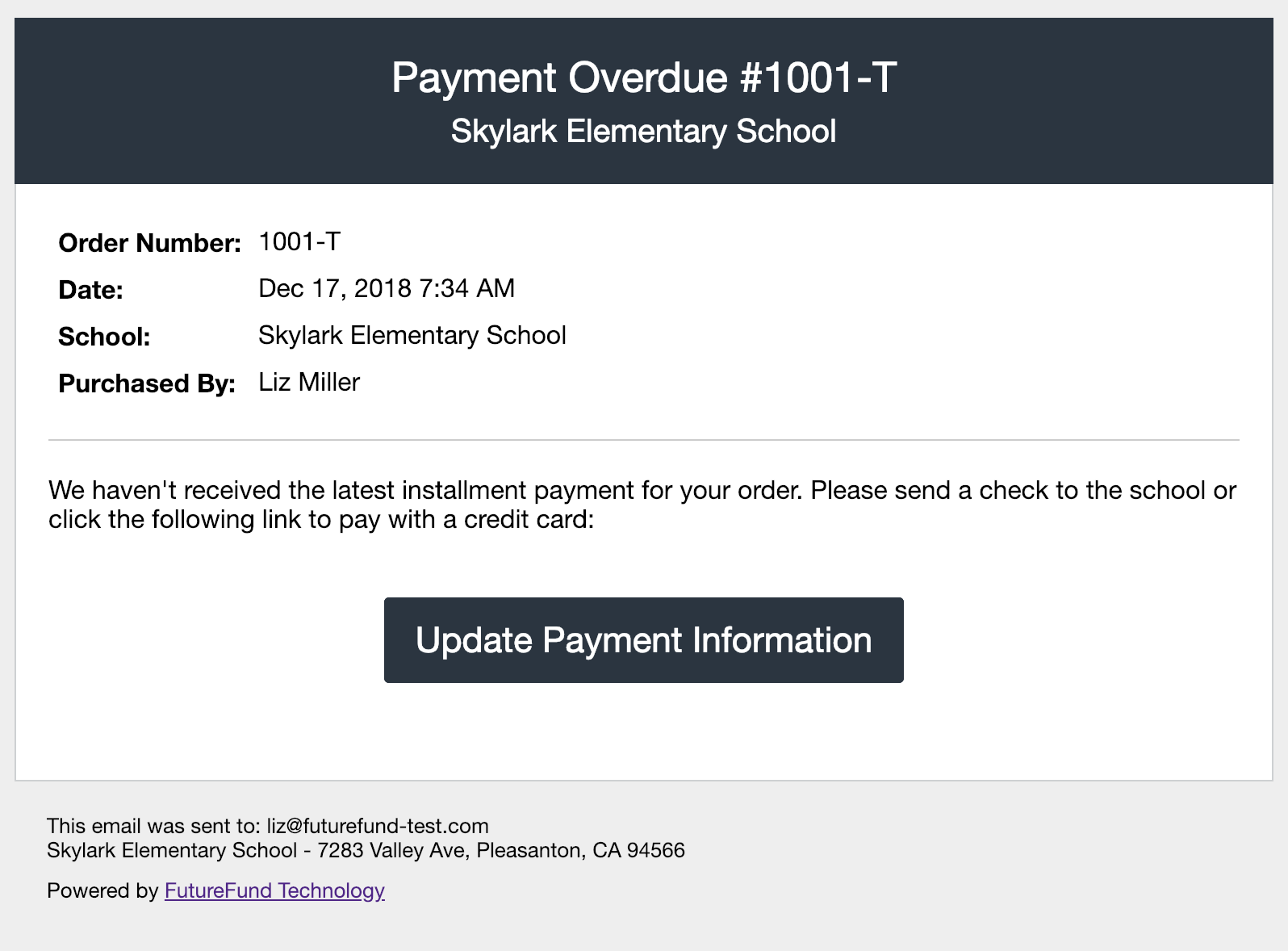
When the parent receives this email, they can click on the link to update their payment information. You are welcome to reach out to the parent as well to update their payment information.
FutureFund provides a report showing failed installments. See the Failed Installment Plan Report for more information.
Past Due Orders
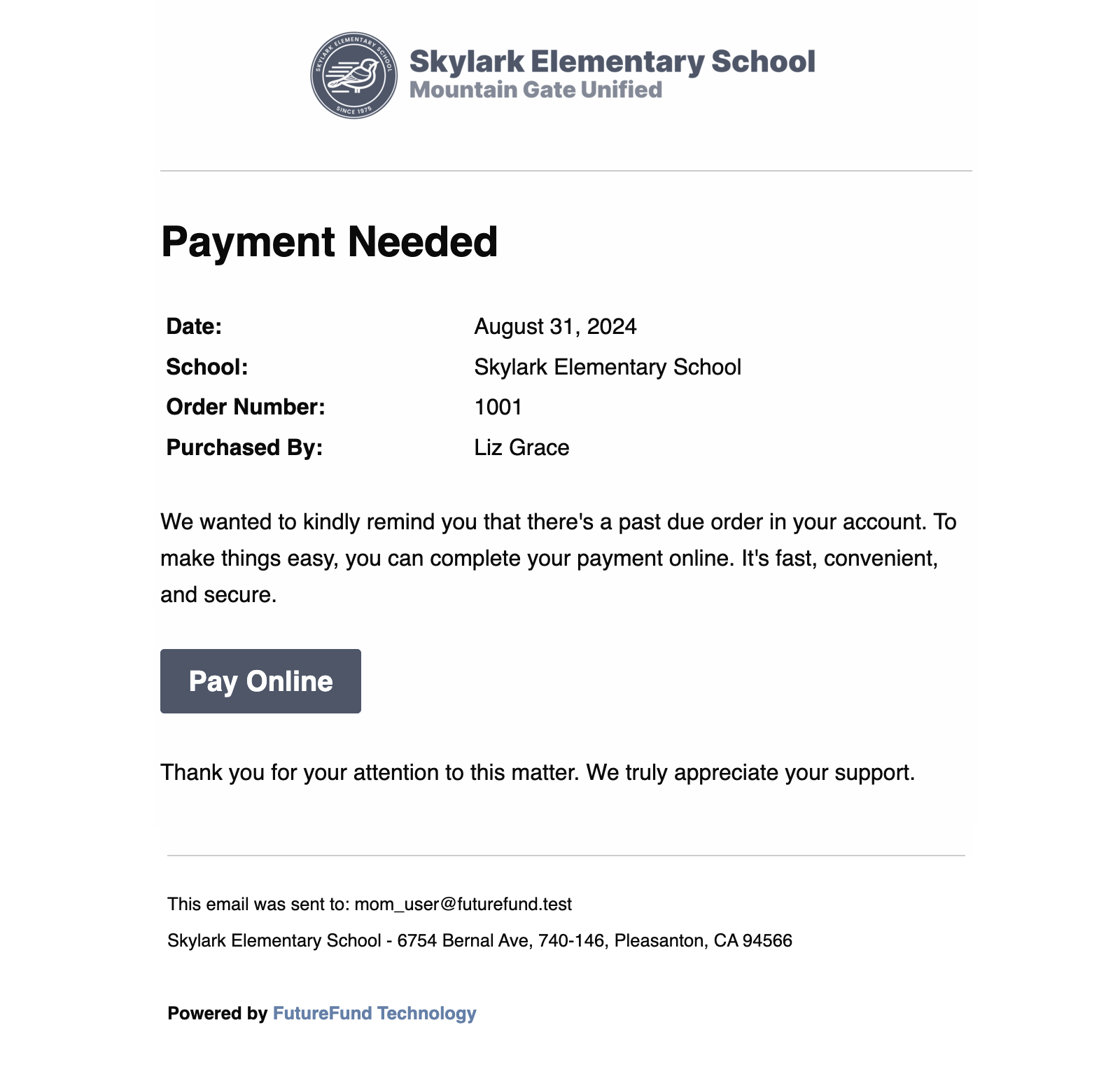
FutureFund will send automated emails to purchasers with a past due order status. Emails are sent weekly on Monday.
Metrics
FutureFund uses the following terms when referring to metrics:
| Column | Description |
|---|---|
| Balance | The amount still owed from the order. |
| Collected | The sum of the paid transactions. This does not include refunds or canceled installment plans. |
| Fees | The sum of the fees for a set of transactions. This could be a negative or positive number. Transaction fees are calculated for each campaign with an accuracy +/- $0.01. The transaction fee of $0.30 is distributed evenly based on the dollar amount of the items. When a refund occurs, the transaction fee is refunded when the entire amount is refunded. This can result in irregularities in how the fee is distributed to the campaign. |
| Gross | The sum of the purchased items of an order. This value does not include payment information (e.g., refunds, installments, failed payments, etc) nor is it affected by canceled order items. |
| Net | Collected Amount - Refunded Amount - Fees = Net Amount |
| Pledged | The pledged amount is the amount selected during the order. |
| Refunded | The sum of the refunded transactions. This is always a negative number. |
Understanding Dates
There are various dates impacting reporting and reconciliation. For example, an order can be placed on November 30, however the payment was received in December. FutureFund uses the following dates in reporting:
- Order Date - Reports using the order date will show totals based on when the order was placed. For example, the Campaign Summary report will show amounts based on the order date.
- Payment Date - Reports using the payment date will show totals based on when the payment was received. For installments and check payment methods, this may be different than the order date.
- Post Date - This is not used in reports, but important to understand. This is when the transaction is posted to the account. For example, when an order is placed on Sunday, it will post on the next business day.
- Payout Date - The Reconciliation Report uses the payout date (or deposit date) to show totals.
Was this helpful?