Configuring Campaigns
This is the reference for settings that show up across campaign types. To open any of them, view a campaign and click Edit. For a walkthrough of creating a campaign in the first place, see Building a Campaign.
Images and Attachments
Each campaign can have two images, both set on the Overview tab:
- Product image: around 400x400, or a similar square ratio. Always shown in store listings. Check Show product image on the campaign page if you also want it on the campaign’s own page.
- Header image: around 1200x600, or a similar wide ratio. Used as a banner.
Attachments are displayed at the bottom of the campaign and are used to make supplemental forms and information available to the purchaser. They’re on the Media tab. Give each one a name and pick a language, then click Add Attachment to add another.

Videos
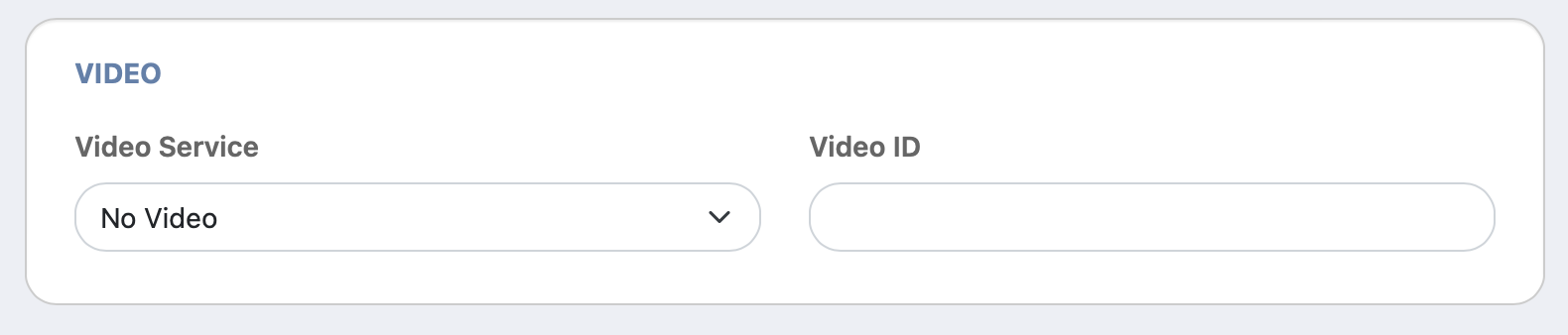
Videos can be displayed when a parent views the campaign page in the Online Store and during First Step. Videos must be hosted on YouTube or Vimeo and be publicly available (although they can be unlisted).
- Open the campaign and click Edit.
- Go to the Media tab.
- Paste the video link into Video Link. Paste the whole link — FutureFund figures out the rest.
- Click Save.
Inventory
Purchase campaigns track inventory on the Options tab under Inventory and Fulfillment, with three choices:
- Unlimited: There is no limit on the number of units sold.
- Simple: Inventory is tracked at the campaign level regardless of selected options.
- Options: Inventory is specified for each campaign option. Useful when selling sized items (small, medium, large). See Tracking Inventory by Option below.
Sign Up campaigns use the same idea under Sign up Capacity and Waitlisting, but only offer Unlimited and Simple. Turn on Enable waitlist when capacity is full to keep collecting names once you’re full.
Ticket campaigns set a Capacity on each event, on the campaign’s Events tab, and show a Remaining count that goes down as tickets sell. Ticket types can also have an optional Inventory limit that applies at each event. Leave either field blank for unlimited. See Ticketing.
Forms on a Pledge Campaign
A Pledge campaign works differently. The form isn’t part of a donation, so donors are never asked to fill it out. Instead, families fill it out once for each participant when they sign up for the campaign.
To see the answers:
- Open the campaign’s Participants tab and click View next to a participant. The answers are on the participant’s page.
- Click Export on the Participants tab. Each question gets its own column.
Was this helpful?